Draw Profile Line
The Draw Profile Line tool visualizes the intensity profile of Hounsfield Units (HU) or grayscale values along a user-defined line in the slice views. This tool is useful for analyzing tissue boundaries, material transitions, and density gradients along a specific path.
Accessing the Tool
- Navigate to the Measure tab in the ribbon
- Click the Draw Profile Line button in the Measurement tools section
An active volume dataset must be loaded in the project.
User Interface
Description
Displays: "Visualize the intensity profile of the Hounsfield Units (HU) or Grayscale Values (GV) of the active volume dataset along a user-defined line."
Options
| Control | Description |
|---|---|
| Graph type | Select the visualization style for the profile graph |
Graph Type Options
| Option | Description |
|---|---|
| Bar | Display the profile as a bar chart |
| Line | Display the profile as a continuous line |
| Filled line | Display the profile as a line with filled area below |
Profile Display
The profile graph shows:
- X-axis: Position along the line (in pixels or distance)
- Y-axis: Intensity value (HU or grayscale)
Toolbar
| Button | Description |
|---|---|
| Export... | Export the profile data to disk |
| Add (+) | Enter line drawing mode to create a new profile line |
Workflow
Creating a Profile Line
- Open the Draw Profile Line tool
- Click the Add (+) button to enter drawing mode
- Click in a 2D slice view to place the first point
- Click again in the same slice view to place the second point
- The intensity profile is generated and displayed automatically
Both points must be placed in the same slice view (Plane 1 (YZ), Plane 2 (XZ), or Plane 3 (XY)). Clicking in a different view after the first point is ignored.
Interacting with the Profile Line
After creating a profile line:
- Move endpoints: Drag the line endpoints in the slice view to adjust the profile path
- Profile updates automatically: The graph refreshes as you modify the line position
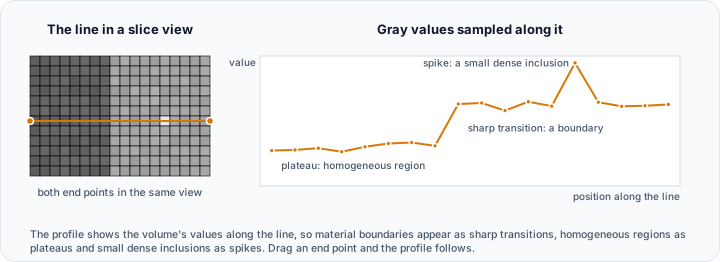
Interpreting the Profile
The profile graph shows intensity values sampled along the line:
| Feature | Interpretation |
|---|---|
| Sharp transitions | Boundaries between different tissues or materials |
| Gradual slopes | Gradual density changes |
| Plateaus | Homogeneous regions |
| Spikes | Noise or small high-density inclusions |
Export
Click the Export... button to save the profile data to disk.
Export Format
The profile data is exported as tabular data containing:
- Position along the line
- Intensity value at each position
Use Cases
Material Analysis
Draw profile lines across material boundaries to measure density transitions and interface characteristics.
Quality Assessment
Analyze intensity uniformity along paths to check for imaging artifacts or inconsistencies.
Anatomical Analysis
Measure tissue density gradients across anatomical structures for clinical or research purposes.
Threshold Determination
Use the profile to identify appropriate threshold values for segmentation by observing intensity distributions across tissue boundaries.
Related Tools
- Histogram — Analyze overall intensity distribution
- Volume Statistics — Statistical analysis of intensity values
- Measurements — Distance and geometric measurements