Slice Analyzer
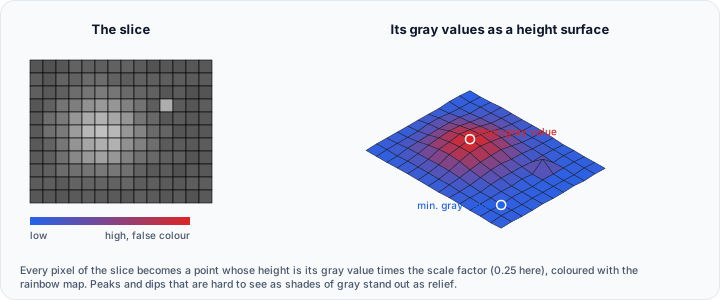
The Slice Analyzer tool visualizes the gray value distribution of a specific slice within a volume dataset by plotting the grayscale values as a 3D surface. This technique helps identify intensity variations, gradients, and anomalies that may not be apparent in standard 2D slice views.
Accessing the Tool
- Navigate to the Measure tab in the ribbon
- Click the Slice Analyzer button in the Analysis section
Overview
Analyze the gray value distribution of a specific slice within the active volume object by plotting the gray values as a 3D surface. Visualize the results using false-color coding to enhance interpretability.
An active volume dataset must be loaded and at least one slice must be visible.
User Interface
Analysis Settings
| Control | Description |
|---|---|
| Slice view | Select the orientation of the slice to analyze |
| Scale factor | Adjust the vertical scaling of the 3D surface (0.001–1.0, default: 0.25) |
Slice View Options
| Option | Description |
|---|---|
| Plane 1 (YZ) | Analyze slices in the YZ plane (orthogonal to X) |
| Plane 2 (XZ) | Analyze slices in the XZ plane (orthogonal to Y) |
| Plane 3 (XY) | Analyze slices in the XY plane (orthogonal to Z) |
Scale Factor
The scale factor adjusts the vertical scaling of the 3D surface to enhance visualization of intensity variations. This ensures that subtle differences in gray values are clearly represented.
- Lower values (closer to 0.001) flatten the surface
- Higher values (closer to 1.0) exaggerate height differences
Start with the default value of 0.25 and adjust based on your data:
- For high-contrast images, use lower scale factors
- For low-contrast or subtle variations, increase the scale factor
- Experiment to find the best visualization for your specific dataset
Information Table
Displays computed statistics for the current slice:
| Statistic | Description |
|---|---|
| Minimum | Lowest gray value |
| Maximum | Highest gray value |
| Mean | Average gray value |
| Dimensions | Slice pixel dimensions |
Visualization Options
Range Adjustment
Use the range slider to adjust the display range for false-color mapping. This allows focusing on specific intensity ranges.
Display Checkboxes
| Option | Description |
|---|---|
| Show max. gray value | Display annotation at the maximum gray value point |
| Show min. gray value | Display annotation at the minimum gray value point |
| Pick point on surface | Enable clicking on the surface to show gray values |
| Show slice | Toggle visibility of the 3D surface |
| Reverse rainbow | Reverse the color mapping direction |
Workflow
Basic Slice Analysis
- Open a volume dataset
- Navigate to the slice of interest using the slice sliders
- Open the Slice Analyzer tool
- Select the slice view orientation (Plane 1, 2, or 3)
- Click Update to generate the 3D surface visualization
- Adjust the scale factor to enhance visibility of variations
Identify Extrema
- Generate the 3D surface
- Enable Show max. gray value and/or Show min. gray value
- View annotations indicating the location and value of extrema
Interactive Point Inspection
- Enable Pick point on surface to show gray value
- Click on any point on the 3D surface
- View the gray value at that location
- Use Copy to Measurements to save annotations
Use Cases
Quality Control
Identify intensity variations or artifacts in CT/MRI data that may indicate issues with acquisition or reconstruction.
Material Analysis
Visualize density gradients in industrial CT scans to identify material boundaries, voids, or inclusions.
Image Processing Validation
Verify the effects of filtering or preprocessing operations by comparing surface visualizations before and after processing.
Defect Detection
Highlight subtle intensity differences that may indicate defects, cracks, or other anomalies.
Toolbar
| Button | Description |
|---|---|
| Export... | Export analysis results to disk |
| Update | Recalculate the 3D surface with current settings |
| Copy to Measurements | Copy visible gray value annotations to the Measurements panel |
Related Tools
- Histogram — View grayscale distribution as a histogram
- Draw Profile Line — Plot intensity along a line
- Volume Statistics — Calculate volume-wide statistics