Mesh Quality Analyzer
The Mesh Quality Analyzer provides tools for analyzing the quality of mesh elements. Available through a dropdown menu, it offers separate analyzers for surface meshes (triangle quality) and volume meshes (element quality).
Accessing the Tools
- Navigate to the Measure tab in the ribbon
- Click the Mesh Quality Analyzer dropdown button in the Analysis section
- Select Surface Quality or Volume Mesh Quality
Surface Quality
Analyze the active surface mesh for triangle quality. The tool calculates selected quality metrics for all triangles, displays their statistical distribution, and provides controls to filter and highlight triangles based on metric thresholds in the 3D view.
Options
| Control | Description |
|---|---|
| Select statistics | Choose the quality metrics to analyze |
| Target metric | Select the metric for visualization and analysis |
| Lookup table | Select the color map for visualizing quality in 3D |
Histogram Chart
The distribution of the target metric is drawn in the Interactive Histogram Chart. Its bars carry the colors of the selected lookup table, so the chart and the 3D view can be read together. Right-click the chart to reach its display options, its interval actions, and its export actions.
| Control | Description |
|---|---|
| Number of bins | Number of bins the triangle values are grouped into (10–1000, default: 50) |
| Normalization | In the chart context menu: element counts or a percentage of all triangles |
| Scale | In the chart context menu: linear or logarithmic frequency axis |
The number of bins is a setting of this tool, because it decides how the triangle values are measured, so the chart does not offer a second bin count of its own.
Drag across the chart to mark a range of metric values. The marked range reports its borders, mean, standard deviation, total, and share of the mesh, which is a quick way to quantify a group of elements before adjusting the thresholds.

Quality Metrics
Thirteen metrics can be measured for the triangles of a surface. Tick the ones you want in Select statistics; each ticked metric gets its own histogram and its own row in the results. Triangle area (mm²) is the metric measured by default.

| Metric | Description | Well-shaped triangles |
|---|---|---|
| Min edge length (mm) | Shortest edge of the triangle | Even across the mesh |
| Min angle (deg) | Smallest interior angle | Above about 30° |
| Max angle (deg) | Largest interior angle | Below about 120° |
| Triangle area (mm²) | Area of the triangle | Even across the mesh |
| Edge ratio | Longest edge divided by the shortest | Close to 1 |
| Radius ratio | Circumscribed radius against the inscribed radius | Close to 1 |
| Aspect ratio | How far the triangle is from equilateral | Close to 1 |
| Equiangle skew | How far the angles depart from 60° | Close to 0 |
| Condition number | Numerical conditioning of the element | Close to 1 |
| Shape factor | Overall shape quality | Close to 1 |
| Shape and size factor | Shape quality weighted by size relative to the mesh | Close to 1 |
| Scaled Jacobian | Normalized element Jacobian | Close to 1; negative means inverted |
| Normalized inradius | Inscribed radius relative to the element size | Close to 1 |
- Aspect ratio, shape factor, and radius ratio all answer "is this triangle well proportioned"; pick one and stay with it rather than reading three versions of the same story.
- Equiangle skew is the quickest single check for sliver triangles: values approaching 1 are nearly degenerate.
- A negative Scaled Jacobian means an inverted triangle, which is a defect rather than a quality grade. Fix those with Diagnostics and Fixes before reading any other metric.
- Use the histogram to find the outliers; the mesh as a whole is rarely the problem.
Annotation
| Option | Description |
|---|---|
| Pick element on mesh | Click on mesh to highlight element and display metric value |
| Copy to Measurements | Copy visible annotation to Measurements panel |
Note: Hold the Alt key to enable view spinning while picking elements.
Information
| Field | Description |
|---|---|
| Total occurrences | Number of elements outside the min/max range values |
Volume Mesh Quality
Analyze the active volume mesh for element quality. The tool calculates selected quality metrics for all elements, displays their statistical distribution, and provides controls to filter and highlight elements based on metric thresholds in the 3D view.
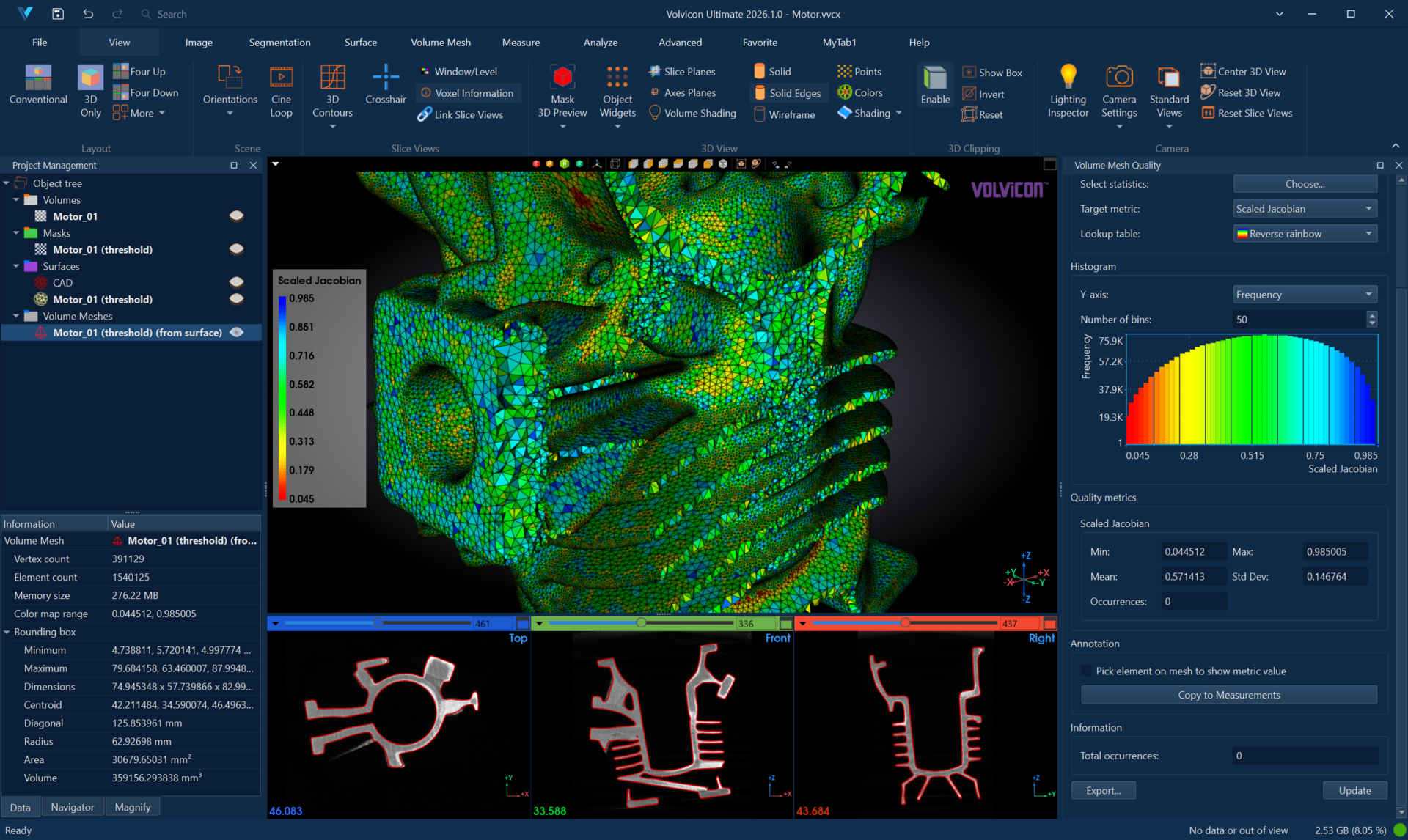
Options
| Control | Description |
|---|---|
| Select statistics | Choose the quality metrics to analyze |
| Target metric | Select the metric for visualization and analysis |
| Lookup table | Select the color map for visualizing quality in 3D |
Histogram Chart
The distribution of the target metric is drawn in the Interactive Histogram Chart. Its bars carry the colors of the selected lookup table, so the chart and the 3D view can be read together. Right-click the chart to reach its display options, its interval actions, and its export actions.
| Control | Description |
|---|---|
| Number of bins | Number of bins the element values are grouped into (10–1000, default: 50) |
| Normalization | In the chart context menu: element counts or a percentage of all elements |
| Scale | In the chart context menu: linear or logarithmic frequency axis |
The number of bins is a setting of this tool, because it decides how the element values are measured, so the chart does not offer a second bin count of its own.
Drag across the chart to mark a range of metric values. The marked range reports its borders, mean, standard deviation, total, and share of the mesh, which is a quick way to quantify a group of elements before adjusting the thresholds.
Quality Metrics
Seventeen metrics can be measured for the elements of a volume mesh. Tick the ones you want in Select statistics; each ticked metric gets its own histogram and its own row in the results. Jacobian is the metric measured by default.
| Metric | Description | Well-shaped elements |
|---|---|---|
| Min edge length (mm) | Shortest edge of the element | Even across the mesh |
| Volume (mm³) | Volume of the element | Even across the mesh |
| Aspect ratio | How far the element is from regular | Close to 1 |
| Radius ratio | Circumscribed radius against the inscribed radius | Close to 1 |
| Edge ratio | Longest edge divided by the shortest | Close to 1 |
| Collapse ratio | How close the element is to collapsing flat | Well above 0 |
| Scaled Jacobian | Normalized element Jacobian | Close to 1; negative means inverted |
| Condition number | Numerical conditioning of the element | Close to 1 |
| Aspect Frobenius | Aspect measure based on the Frobenius norm | Close to 1 |
| Min angle (deg) | Smallest dihedral angle | Not close to 0 |
| Jacobian | Unnormalized element Jacobian | Above 0 |
| Aspect gamma | Aspect measure based on edge lengths and volume | Close to 1 |
| Equiangle skew | How far the angles depart from the ideal | Close to 0 |
| Equivolume skew | How far the volume departs from the ideal for its circumsphere | Close to 0 |
| Mean ratio | Averaged shape quality | Close to 1 |
| Normalized inradius | Inscribed radius relative to the element size | Close to 1 |
| Squish index | How distorted the element is relative to its neighbours | Close to 0 |

- Scaled Jacobian is the metric most solvers care about most. Negative values are inverted elements and must be fixed, not tuned.
- Aspect ratio, radius ratio, aspect gamma, aspect Frobenius, and mean ratio are all proportion measures; choose the one your solver documentation names rather than reading all of them.
- Equiangle skew, equivolume skew, and squish index all approach their bad end for slivers, so any one of them finds the same problem elements.
Annotation
| Option | Description |
|---|---|
| Pick element on mesh | Click on mesh to highlight element and display metric value |
| Copy to Measurements | Copy visible annotation to Measurements panel |
Note: Hold the Alt key to enable view spinning while picking elements.
Workflow
Basic Quality Analysis
- Select a mesh object (surface or volume)
- Open the appropriate quality analyzer
- Click Choose... to select quality metrics
- Select a target metric for visualization
- Click Update to calculate metrics
- Review the histogram and quality metrics display
Identify Problem Elements
- Generate quality analysis
- Review the histogram for outliers
- Adjust the threshold range to highlight problem elements
- Check Total occurrences for count of elements outside range
- Enable Pick element on mesh to inspect individual elements
Prepare for Simulation
- Analyze mesh quality before FEA/CFD simulation
- Check aspect ratio and Jacobian values
- Identify elements that may cause numerical instability
- Export quality report for documentation
Toolbar
| Button | Description |
|---|---|
| Export... | Save statistics and histogram to disk |
| Update | Recalculate quality metrics |
A histogram bar counts every element whose metric falls within a range of values, not at a single value. Both the exported file and the report table therefore state that range in a from and a to column, followed by the frequency or the percentage.
Interpreting Quality Metrics
Good Quality Indicators
- Aspect ratio close to 1
- Positive Jacobian values
- Angles within acceptable ranges (30°–90° for triangles)
- Uniform element sizes
Poor Quality Indicators
- Very high aspect ratios (elongated elements)
- Negative or near-zero Jacobian (inverted/degenerate elements)
- Very small or very large angles
- Significant size variations
Related Tools
- Interactive Histogram Chart — Reading, navigating, and evaluating the histogram chart
- Surface Statistics — Statistics for surface meshes
- Volume Mesh Statistics — Statistics for volume meshes
- Mesh Tools — Surface mesh processing tools