Project Management Dock
The Project Management dock is split into two regions: the scene tree on top and a tabbed panel below it. The splitter between them can be dragged to resize how much space each region takes.
Scene Tree
- Shows a single root named Object tree (header is hidden) with four fixed sections: Volumes, Masks, Surfaces, and Volume Meshes.
- Each section lists objects of that type only; items are not nested under one another. New items appear at the top of their section.
- Items include the type icon and a visibility icon. Renaming is inline, and duplicate names are automatically adjusted to stay unique.
- Drag-and-drop reorders a single selected item within its own section (cross-section moves are blocked). Move Up/Move Down commands are also available from the context menu.
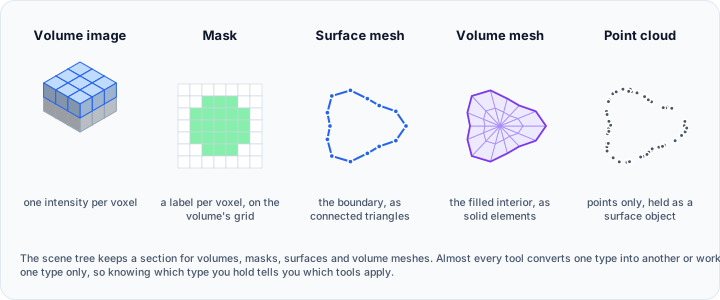
Selection and activation
- Selecting an item highlights it in the tree and the corresponding 3D view managers. Active items are shown in bold when activation is supported by the object type.
- Double-clicking a name edits it in place (rename).
Context menu
Right-click a section root to add objects of that type:
| Section root | Entries |
|---|---|
| Volumes | Create Volume, and Import Volume with 3D Images, 3D Raw Image, Image Stack, and DICOM Images |
| Masks | Create Mask and Import Mask |
| Surfaces | Create Surface and Import Surface |
| Volume Meshes | Import Volume Mesh |
The import entries open the same dialogs as File → Import.
Right-click a child item to operate on the selected objects of that type:
- Select All / Invert Selection
- Toggle visibility or Isolate (hide everything else)
- Duplicate
- Export
- Move up / Move down
- Rename
- Delete (with confirmation)
- Render Properties (opens the render controls for the type)
Bottom Tabs
The lower region hosts a tab widget with three tools, in this order: Data, Navigator, and Magnify.
Data
Presents the selected item in a readable two-column tree, headed Information and Value. For volumes you see the number of slices, voxel grid size, physical dimensions and origin, spacing, grayscale range, memory footprint, and any available metadata. Masks list the same spatial details and memory use, and when a preview surface exists you also get a compact 3D preview summary with point/face counts and bounding-box stats. Surface entries focus on mesh density (vertices/polygons), memory, color map range when scalars are active, and geometric bounds (min/max, size, centroid, diagonal, radius, area, volume). Volume meshes follow the same pattern, reporting element and vertex counts, memory, optional scalar range, and full bounding-box measurements.
Navigator
Controls slice positions for the active volume with Plane 1 (YZ), Plane 2 (XZ), and Plane 3 (XY) sliders/spin boxes that update slice index and physical position (mm). The controls stay in sync with the active volume and scene orientation and reset when no volume is loaded.
Magnify
Provides a magnifier overlay for slice views with a magnification scale control and an on/off toggle.
Use the Data tab to quickly verify volume dimensions, spacing, and memory usage before running computationally intensive operations.
Related Topics
- The Interface – Interface overview
- 2D Views – Slice view navigation
- The 3D View – 3D visualization
- Understanding Volume Grayscale Image – Volume data fundamentals
- Understanding Masks – Mask fundamentals