Export FEM Mesh
The Export FEM Mesh dialog provides tools for exporting volume meshes to finite element analysis (FEA) solver formats. This includes defining materials, creating node sets and element sets for boundary conditions, configuring solver-specific options, and generating properly formatted output files.
Accessing the Dialog
The Export FEM Mesh dialog can be accessed in two ways:
- Navigate to the Volume Mesh ribbon tab and click Export FEM Mesh in the FEM section
- From the Configure FEM Model tool, click the Export... button
Supported Export Formats
| Format | Extension | Description |
|---|---|---|
| Abaqus | .inp | Abaqus/Standard and Abaqus/Explicit input files |
| Nastran | .nas, .dat, .bdf | MSC Nastran and NX Nastran bulk data files |
| LS-DYNA | .k, .dyn, .key | LS-DYNA keyword input files for explicit dynamics |
| OpenFOAM | polyMesh | OpenFOAM mesh directory structure for CFD |
| Fluent | .msh | ANSYS Fluent mesh format |
| Gmsh | .msh | Gmsh mesh format for general meshing workflows |
Dialog Tabs
The export dialog is organized into five configuration tabs:
Format & Output
Export Format
Select the target FEA solver format from the dropdown. The format determines:
- Output file syntax and structure
- Available format-specific options
- Required definitions (materials, sets, boundary types)
Output File
Specify the export file path. Click Browse... to select a destination folder and filename. The file extension is automatically suggested based on the selected format.
Format Options
Each format has specific configuration options:
Abaqus Options
| Option | Description |
|---|---|
| Analysis Type | Static, Dynamic Explicit, Frequency, or Heat Transfer analysis |
| Write assembly structure | Include *ASSEMBLY and *INSTANCE definitions for assembly models |
| Include history output requests | Add *OUTPUT, HISTORY for time-based tracking |
Nastran Options
| Option | Description |
|---|---|
| Field Format | Small Field (8 char), Large Field (16 char), or Free Field |
| Write executive control section | Include SOL and CEND cards for standalone analysis |
| Export node sets as SPC constraints | Convert node sets to SPC1 boundary condition cards |
LS-DYNA Options
| Option | Description |
|---|---|
| Solid Formulation | ELFORM parameter: Constant Stress (1), Fully Integrated (2), or 1-Point Tetrahedron (10) |
| Write control cards | Include *CONTROL_TERMINATION and *CONTROL_ENERGY |
| Termination Time | Simulation end time in seconds |
OpenFOAM Options
| Option | Description |
|---|---|
| Case Name | Name of the OpenFOAM case directory |
| Create full case structure | Generate 0/, constant/, and system/ directories with templates |
| Write cell zones | Include cellZones for multi-region definitions |
Fluent Options
| Option | Description |
|---|---|
| Default Boundary Type | Wall, Pressure Inlet/Outlet, Velocity Inlet, or Symmetry |
| Default Cell Zone Type | Fluid, Solid, or Porous |
| Write comments | Include descriptive comments in output |
Gmsh Options
| Option | Description |
|---|---|
| Format Version | Version 2.2 (legacy) or Version 4.1 (current) |
| Write physical groups | Include $PhysicalNames for named regions |
Export Preview
The preview area shows a sample of the output file structure, allowing verification before export.
Materials
Define material properties for the FEM model.
Auto-Assignment
Enable Auto-assign materials from grayscale values to automatically map CT image grayscale values to material properties. This is useful for bone modeling where density correlates with Hounsfield Units.
Select a Material preset as the base for grayscale mapping:
- Steel
- Aluminum
- Titanium
- Cortical Bone
- Trabecular Bone
- Soft Tissue
Materials Table
The materials table displays all defined materials with properties:
| Column | Description |
|---|---|
| ID | Unique material identifier |
| Name | Material name (editable) |
| E (MPa) | Young's modulus (elastic modulus) |
| ν | Poisson's ratio |
| Density | Material density |

Use Add Material to create new materials with default properties. Select a material and click Remove to delete it.
Sets & Surfaces
Define node sets, element sets, and surfaces for boundary conditions and output requests.
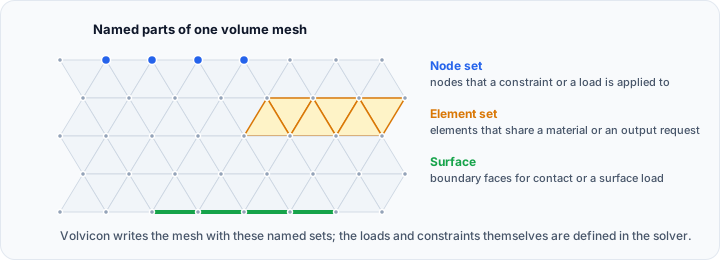
Node Sets
Collections of nodes for applying:
- Displacement constraints (fixed supports)
- Point loads and moments
- Prescribed temperatures
- Contact definitions
The table shows each node set's ID, name, and node count. Click Add Empty... to create a new node set.
Element Sets
Groups of elements for:
- Material assignment
- Output variable requests
- Initial conditions
- Load distribution
The table shows each element set's ID, name, and element count. Click Add Empty... to create a new element set.
Surfaces
Boundary face collections for:
- Pressure loads
- Contact definitions
- Surface-to-surface constraints
- Heat flux boundaries
Click Detect Boundaries to automatically identify and create surfaces from mesh boundary faces.
Click Remove Selected to delete the selected set or surface.
ROI-Based Set Creation
Create sets from Region of Interest (ROI) primitives:
- Create ROI primitives (spheres, boxes, etc.) to define regions
- Specify names for the new node set and element set
- Click Create Sets and Surfaces from Visible ROIs
This creates:
- Node sets containing all nodes inside the ROI volumes
- Element sets containing elements with centroids inside the ROI
- Boundary surfaces of each element set
Parts
Parts group elements with assigned materials and section properties.
Parts Table
| Column | Description |
|---|---|
| Name | Part name (editable by double-clicking) |
| Elements | Number of elements in the part |
| Material | Assigned material name |
| Section Type | Section definition type |
Creating Parts from Element Sets
To create a part from an existing element set:
- Select the element set from the dropdown
- Select the material to assign
- Click Create Part
This converts the element set into a part with the specified material assignment.
Use Add Part to create an empty part or Remove Part to delete the selected part.
Options
General Options
| Option | Description | Default |
|---|---|---|
| Numeric precision | Decimal places for coordinate output | 8 |
| Include comments in output | Add descriptive comments to output file | Enabled |
Mesh Statistics
Displays overview of the mesh being exported:
- Total node count
- Total element count
- Number of defined parts
Export Workflow
Basic Export
- Open the Export FEM Mesh dialog
- Select the target format
- Configure format-specific options
- Specify the output file path
- Click Preview to verify output structure
- Click Export to generate the file
Complete FEM Model Export
For a fully defined FEM model:
- Materials Tab: Define material properties for each region
- Sets & Surfaces Tab:
- Create node sets for boundary conditions
- Create element sets for material regions
- Define surfaces for contact or loads
- Parts Tab: Create parts from element sets with material assignments
- Format & Output Tab: Configure export options
- Export the complete model
Export for Structural Analysis (Abaqus Example)
- Select Abaqus (.inp) format
- Set Analysis Type to Static
- Go to Materials and define material properties
- Go to Sets & Surfaces:
- Create node sets for fixed supports
- Create element sets for different material regions
- Go to Parts and assign materials to element sets
- Set output path and click Export
Export for CFD (OpenFOAM Example)
- Select OpenFOAM (polyMesh) format
- Enable Create full case structure
- Set the Case Name
- Enable Write cell zones for multi-region setup
- Go to Sets & Surfaces:
- Detect boundary surfaces
- Rename surfaces to match boundary conditions (inlet, outlet, wall)
- Set output path and click Export
Scripting API
FEM export operations can be automated using Python scripting. See the FEM Operations API for available functions.
Related Tools
- Import FEM Mesh - Load a mesh from an FEA solver file into a volume mesh
- Configure FEM Model - Visualize and manage FEM components
- Surface to Volume Mesh - Create volume meshes for FEM
- Render Properties - Visualize volume mesh before export
- Transform - Position mesh correctly before export