Record Video
The Video Recorder records videos of the Volvicon views and creates view animations such as turntable rotations, keyframe camera paths, and slice sweeps. Use it to produce videos for presentations, training materials, quality documentation, or sharing analysis results.
Open it with File → Media → Record Video, or press Ctrl+Alt+R. The Video Recorder appears as a panel docked at the bottom of the main window, so it stays accessible while you work in the views. Use the dock title-bar close button, or Panels → Video Recorder in the title bar, to hide the panel when the recorder is idle.
| Starlit Moonlight Theme | Blue Theme |
|---|---|
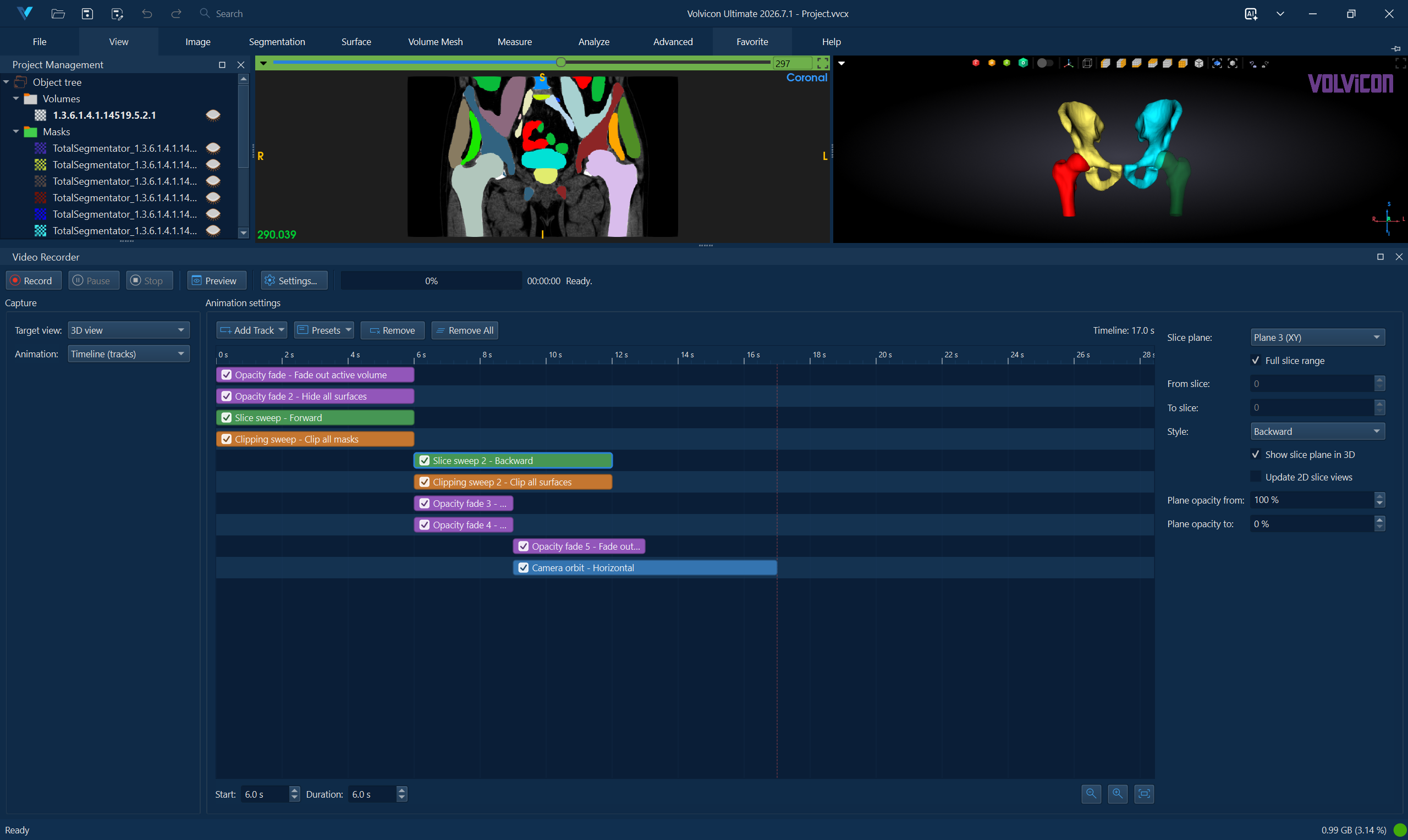 | 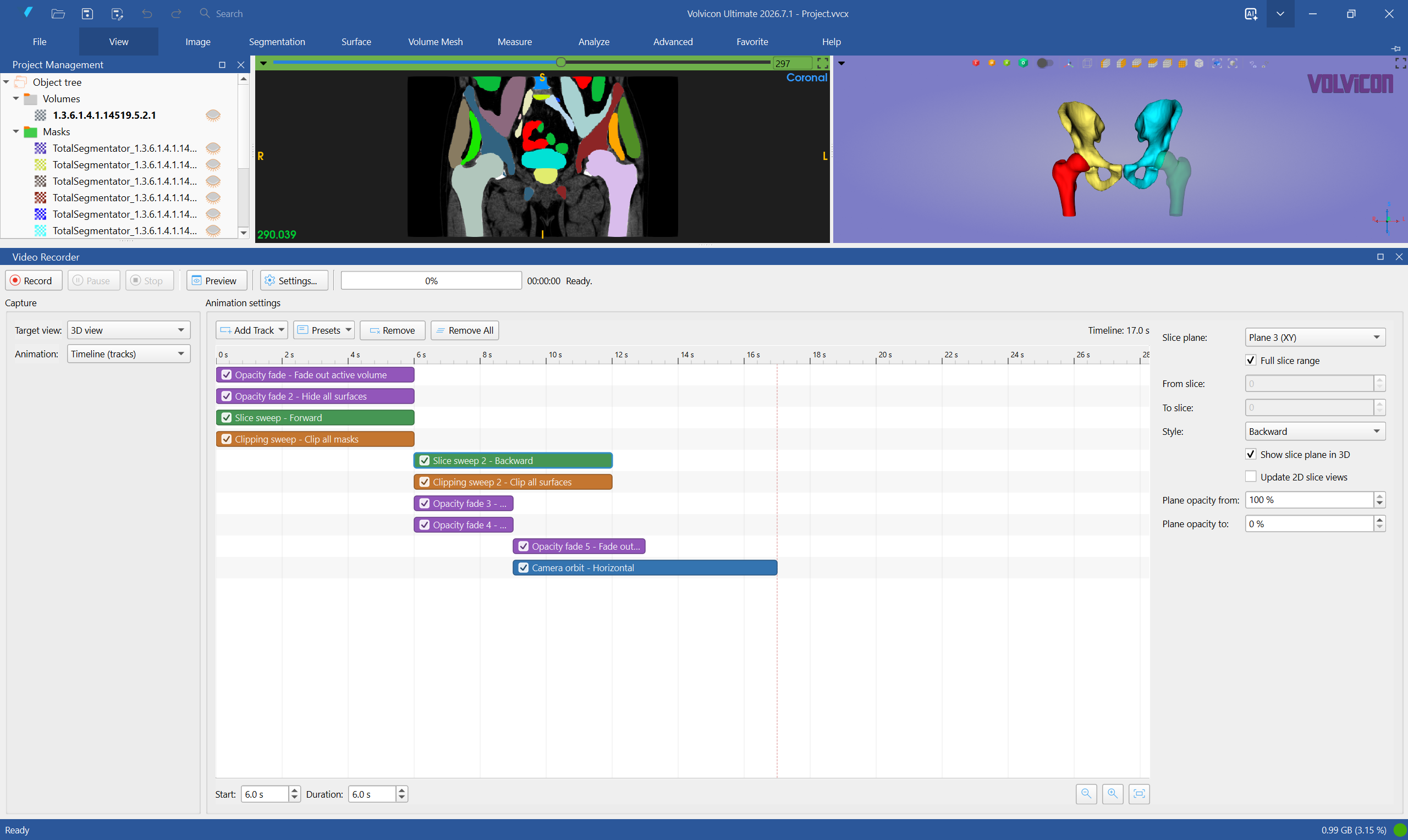 |
Panel Overview
The Video Recorder panel provides:
- Toolbar: Record, pause, and stop controls, the animation preview, the output settings, and the progress display
- Capture: Choose the target view, the animation type, and the duration
- Animation Settings: Configure the selected animation
The frame rate, quality, format, and output folder are edited in a separate dialog opened with the Settings... toolbar button, so the panel stays compact. Videos are saved to the user's Videos folder unless another folder is selected.
Before recording, prepare the scene exactly as you want it to appear:
- Load the required volume, masks, surfaces, or volume meshes.
- Turn on the objects that should be visible in the video and hide anything distracting.
- Set the 3D camera, slice positions, clipping box, background, colors, opacity, and layout.
- Choose Settings... to confirm the frame rate, quality, format, and output folder.
- Use Preview for animated videos before writing the final file.
Target Views
| Target | Description |
|---|---|
| Application | The entire Volvicon application window |
| 3D view | The 3D render view only |
| 2D views | One of the three slice views (named according to the scene orientation) |
Choose the target based on what the viewer needs to see:
- Use Application for tutorials, demonstrations, and multi-view explanations where the ribbon, panels, cursor, or several views are useful.
- Use 3D view for a clean presentation video of the rendered scene without the rest of the interface.
- Use a 2D view for slice-by-slice review, CT/MRI-style scrolling, or showing window/level changes in one plane.
The Record mouse cursor option is available for the Application target. It is useful for training videos and interactive demonstrations, but usually unnecessary for clean animation exports.
Animation Types
The available animations depend on the selected target view:
| Animation | Available For | Description |
|---|---|---|
| Interactive (live) | All targets | Records the view live while you interact with the application |
| Turntable rotation | Application, 3D view | Rotates the camera continuously around the scene |
| Rock (oscillate) | Application, 3D view | Swings the camera back and forth around the scene |
| Camera path (keyframes) | Application, 3D view | Moves the camera along a smooth path defined by keyframes |
| Slice sweep | Application, 2D views | Sweeps through the slices of a 2D view |
| Timeline (tracks) | Application, 3D view | Composes multiple animation tracks (camera, opacity, clipping, slices, background) into a single video |
When the Application target is combined with a camera animation, the 3D view is animated while the whole window is recorded. The application slice sweep animates the third (axial/top) slice view.
Animated recordings are rendered frame by frame, so the video duration, smoothness, and frame count are exact regardless of the computer speed. The animated view state is restored when the recording or preview ends.
The animation follows from what the video is meant to show:
Common use cases:
| Goal | Recommended Setup |
|---|---|
| Show a complete 3D object | 3D view + Turntable rotation |
| Create a polished product-style view | 3D view + Camera path (keyframes) or a camera-path preset |
| Demonstrate a manual workflow | Application + Interactive (live) + Record mouse cursor |
| Show every slice in a volume | A 2D view + Slice sweep |
| Reveal internal structure | 3D view + Timeline (tracks) with camera and clipping tracks |
| Fade segmentations in or out | Timeline (tracks) with opacity tracks for masks, surfaces, or volume meshes |
Turntable Rotation
| Option | Description |
|---|---|
| Rotation axis | Horizontal (yaw), Vertical (pitch), or Roll |
| Revolutions | Number of full 360° turns over the video duration |
| Reverse direction | Rotate the opposite way |
Rock (Oscillate)
| Option | Description |
|---|---|
| Rotation axis | Horizontal (yaw), Vertical (pitch), or Roll |
| Swing angle | Maximum angle of the oscillation in degrees |
| Cycles | Number of back-and-forth swings over the video duration |
Camera Path (Keyframes)
Define the camera motion with keyframes:
- Position the 3D camera (rotate, pan, zoom) to the first viewpoint.
- Click Add to store the camera position as a keyframe.
- Move the camera to the next viewpoint and click Add again.
- Repeat for every viewpoint of the path. At least two keyframes are required.
The recorder interpolates the camera between the keyframes:
| Option | Description |
|---|---|
| Interpolation | Smooth (spline) flies fluidly through the keyframes; Linear moves in straight segments |
| Seconds to next | Transition time from a keyframe to the next one (edit the value in the table) |
| Add | Store the current camera position as a new keyframe |
| Update | Replace the selected keyframe with the current camera position |
| Remove / Clear | Delete the selected keyframe or all keyframes |
| Up / Down arrows | Reorder the selected keyframe |
Double-click a keyframe in the table to apply its camera position to the 3D view.
Slice Sweep
| Option | Description |
|---|---|
| From slice / To slice | Slice range of the sweep |
| Style | Forward (From → To), Backward (To → From), or Ping-pong (there and back) |
The slice range requires a loaded volume.

Timeline (Tracks)
The timeline composes multiple animation tracks into a single video, so one recording can, for example, orbit the camera while an object fades out and a clipping plane sweeps through the scene.
Each track animates one property over its own time interval on a shared time axis:
| Track | Description |
|---|---|
| Camera orbit | Continuous camera rotation (axis, revolutions, direction) |
| Camera rock | Oscillating camera rotation (axis, swing angle, cycles) |
| Camera path (keyframes) | Keyframe camera animation; the track duration stretches the path in time |
| Opacity fade | Fades the opacity of the targeted objects (all objects, all/active volumes, masks, surfaces, or volume meshes) from a start to an end value |
| Clipping sweep | Sweeps the 3D clipping box through the objects along the X, Y, or Z axis, changing the visible portion over time |
| Slice sweep | Sweeps through the slices of one slice plane, optionally showing and fading the plane in the 3D view |
| Background fade | Fades the gradient background colors (top and bottom) of the 3D view from a start pair to an end pair |
Camera orbit / rock / path tracks
The three camera tracks share the settings of the matching stand-alone animations (Rotation axis, Revolutions, Reverse direction for orbit; Rotation axis, Swing angle, Cycles for rock; Interpolation and the keyframe table for path). For a camera path track the Duration of the track on the timeline stretches or compresses the whole path, while the keyframe Seconds to next values set the relative pace between keyframes.
Opacity fade track
| Option | Description |
|---|---|
| Objects | Which objects to fade: All objects, All volumes, All masks, All surfaces, All volume meshes, or only the active volume, mask, surface, or volume mesh |
| From opacity | Opacity at the start of the track, in percent |
| To opacity | Opacity at the end of the track, in percent |
Only objects that are visible when the recording starts are faded. If the target objects are not present or not visible, the recording reports that no object matches the opacity track. Volumes fade all the way to invisible, and the fade is smoothed so the change looks even across the track rather than jumping near one end.
Clipping sweep track
| Option | Description |
|---|---|
| Objects | Which objects the box clips: the objects whose per-object clipping option is enabled (default), All objects, All volumes, All masks, All surfaces, All volume meshes, or only the active volume, mask, surface, or volume mesh |
| Sweep axis | X axis, Y axis, or Z axis in world coordinates |
| From visible | Visible portion of the objects at the start of the track, in percent |
| To visible | Visible portion of the objects at the end of the track, in percent |
| Sweep from the opposite side | Start the sweep from the other side of the objects |
If the clipping box was not enabled before the recording, it is enabled for the animation and disabled again afterwards. If it was already enabled, its previous placement is restored when the recording ends. The scene needs at least one visible object with valid bounds along the sweep axis.
Slice sweep track
| Option | Description |
|---|---|
| Slice plane | Which slice plane (named according to the scene orientation) to sweep |
| Full slice range | Sweep the complete slice range of the active volume; turn it off to set an explicit From slice / To slice range |
| From slice / To slice | First and last slice of the sweep when Full slice range is off (From must be less than To) |
| Style | Forward (From → To), Backward (To → From), or Ping-pong (there and back) |
| Show slice plane in 3D | Show the slice plane in the 3D view during the track and apply the Plane opacity from / to fade below |
| Plane opacity from / to | Slice-plane opacity at the start and end of the track, in percent (used only when Show slice plane in 3D is on) |
| Update 2D slice views | Update the 2D slice views on every frame. Leave it off for faster 3D-only slice-plane motion; turn it on only when the 2D slice views must visibly update during the video |
A loaded volume is required, and the selected slice plane must have more than one slice. The original slice position, plane visibility, and plane opacity are restored after preview or recording.
Background fade track
| Option | Description |
|---|---|
| From / To top color | Gradient background top color at the start and end of the track |
| From / To bottom color | Gradient background bottom color at the start and end of the track |
| Swap Top/Bottom | Swap the top and bottom colors of both color pairs |
A new background fade track starts from the current background colors, so it fades away from the look you already have. The original background is restored when the recording ends.
Working with tracks in the timeline view:
- Click Add Track and choose a track type, or click Presets to add a ready-made animation.
- Each track appears as a bar on the time axis. Drag the bar to change its start time and drag its left or right edge to change its duration. Tracks can run one after another, overlap, or run in parallel.
- Click the small indicator on the left of a bar to enable or disable the track; disabled tracks are grayed out and excluded from the video.
- Select a track to edit its settings in the panel on the right. The Start and Duration boxes below the timeline edit the exact values of the selected track.
- Zoom with Ctrl + mouse wheel or the -, +, and Fit buttons; the total timeline duration (dashed marker) is shown above the timeline.
- Double-click a track to rename it.
During a preview or a recording, a playhead (a vertical orange time cursor with the current time) sweeps across the timeline so you can see exactly where the animation is. It runs from the start to the dashed end marker and disappears when the preview or recording ends. The progress bar in the toolbar shows the same progress as rendered frames.
Right-click a track for more commands: Enabled, Rename, Duplicate, Remove, Move Up/Down (used when tracks start at the same time), Start at Zero, Snap to Previous Track End, and Expand to Timeline End.
Behavior notes:
- Removing a track (or all tracks) asks for confirmation; the message can be suppressed with "Do not show this message again".
- After a track ends, visual states such as opacity, slice position, camera, and background hold their final state until another later track changes them. Clipping sweeps release when later tracks continue, so the next section is not accidentally clipped.
- All camera, opacity, clipping, slice, and background states are restored when the recording or preview ends.
- Tracks are kept while the application is running. They are not saved automatically between sessions, but you can save a timeline to a file and reload it later with Presets → Export to File... / Import from File....
Presets
The Presets menu adds a complete animation composed of multiple tracks, ready to preview and record. Adjust the added tracks afterwards as needed.
| Preset | Tracks |
|---|---|
| Turntable showcase | One full camera turn around the scene (10 s) |
| Slice scan (3D) | Sweeps the slices in the 3D view while the camera slowly orbits (8 s) |
| Scan and reveal | Hides surfaces while scanning forward through the volume and clipping masks, then scans back while revealing surfaces, keeps masks hidden, fades the active volume, and finishes with a full camera turn (17 s) |
| Clipping reveal | Reveals the objects with a clipping sweep while the camera makes a half turn (8 s) |
| Spiral showcase | A camera path that starts wide, wraps around the scene in a rising, closing spiral, and settles on the current viewpoint — a classic product shot (12 s) |
| Cinematic push-in | A camera path that arrives at the current viewpoint from far away with a gentle arc (8 s) |
| Crane hero shot | A camera path that starts low and close, sweeps up and around, and settles back at the current viewpoint (12 s) |
| Clinical fly-through | Fades to a neutral studio background while a restrained camera path drifts through an oblique angle and lands on the current diagnostic view (10 s) |
| Technical inspection | A measured camera orbit with a shallow clipping pass that cuts partly into the objects to expose internal structure without losing context (12 s) |
| Macro detail pass | A close-up camera path that moves in, slides across the subject, and backs out to the original composition — for implants, defects, surfaces, and small regions (9 s) |
| Cross-section reveal | Starts as a cutaway, opens the clipping box to reveal the full object over a presentation-gradient background, and finishes on the composed view (10 s) |
The Scan and reveal preset is useful for showing a volume-rendered scan first, then revealing surfaces while the active volume fades. The Technical inspection and Cross-section reveal presets add a clipping track, so make sure the scene has a visible object before using them.
The camera path presets (Spiral showcase, Cinematic push-in, Crane hero shot, Clinical fly-through, Technical inspection, Macro detail pass, and Cross-section reveal) build their keyframes from the current viewpoint and end back on it, so frame the scene first, then add the preset; the generated keyframes can be edited like any camera path.
Save and Reuse a Timeline
You can save the whole timeline to a file and load it again later — for example, to reuse a favorite multi-track animation across projects or to share it with a colleague.
- Presets → Export to File... saves every track (type, name, timing, and all settings, including camera keyframes) to a timeline file.
- Presets → Import from File... loads a saved timeline, replacing the current tracks (you are asked to confirm before existing tracks are replaced).
Imported tracks reference objects by role (all objects, all/active volumes, masks, surfaces, or volume meshes), not by name, so a saved timeline also works on a different scene as long as the matching objects are present.
Duration and Output Settings
The Duration of the animation is set in the Capture group. It is not used for interactive recordings (which run until you click Stop), camera paths (whose duration is the sum of the keyframe transition times), and timelines (whose duration is the latest enabled track end).
The output settings are edited in the dialog opened with the Settings... toolbar button:
| Setting | Description |
|---|---|
| Frame rate | Frames per second (1–120, typically 30) |
| Quality | Output resolution preset |
| Format | MP4 (H.264), AVI (H.264), or AVI (Motion JPEG) |
| Folder | Destination folder; the file name is generated from the target view and a timestamp. When empty, videos are saved to the user's Videos folder |
Quality Presets
| Preset | Resolution | Use Case |
|---|---|---|
| Auto | Automatic selection | General purpose |
| Native | Match current view size | Best quality for the view |
| UHD 4K | 3840 × 2160 | High-resolution displays, large presentations |
| Full HD | 1920 × 1080 | Standard HD output |
| HD | 1280 × 720 | Web sharing, smaller files |
| SD | 854 × 480 | Legacy compatibility |
| Low | 640 × 360 | Smallest file size |
The output maintains the aspect ratio when resizing to the selected preset, and no upscaling is applied.
Additional Options
| Option | Description |
|---|---|
| Record mouse cursor | Include the mouse pointer when recording the application window |
Enable cursor recording when creating tutorials or demonstrating interactive workflows.
Recording Controls
The toolbar at the top of the panel provides the recording controls:
| Control | Action |
|---|---|
| Record | Start recording the video |
| Pause | Temporarily pause the recording or preview |
| Stop | End the recording and finalize the video file |
| Preview | Play the animation in the view without recording; click again to stop |
| Settings... | Open the output settings (frame rate, quality, format, folder) |
The progress bar shows the rendered frames of an animated recording. When the recording finishes, the saved file name is shown in the toolbar (the full path is in its tooltip). The Messages dock keeps a message for each recording: when it started, and which file it saved or why it failed.
Use Preview to check the animation speed, direction, and framing before recording. Previews play in real time and never write a file.
While a recording or preview is running, keep the Video Recorder visible so you can pause or stop it. If you press the dock close button during an active recording or preview, Volvicon keeps the panel open and asks you to stop the session first. For animated recordings, avoid opening dialogs or moving other windows over the recorded target. For interactive application recordings, anything visible in the application window can appear in the video.
Workflow: Turntable Video of a 3D Scene
- Set up the 3D view with the desired objects, colors, and camera distance.
- Open File → Media → Record Video.
- Select 3D view as the target and Turntable rotation as the animation.
- Choose the rotation axis (e.g., Horizontal (yaw)) and 1.00 revolutions.
- Set the Duration (e.g., 12 s). Adjust the frame rate, quality, and output folder with Settings... if needed.
- Click Preview to verify the motion, then Record.
- The video is rendered frame by frame and saved automatically when the rotation completes.
Workflow: Camera Fly-Through with Keyframes
- Select 3D view as the target and Camera path (keyframes) as the animation.
- Position the camera at the first viewpoint and click Add.
- Move the camera to further viewpoints, clicking Add for each one.
- Adjust the Seconds to next values in the table to control the pace.
- Keep Smooth (spline) interpolation for a fluid motion.
- Click Preview to check the path, then Record.
Workflow: Composed Animation with Tracks
- Select 3D view (or Application) as the target and Timeline (tracks) as the animation.
- Click Add Track → Camera orbit. Set its start to 0 s and duration to 10 s.
- Click Add Track → Opacity fade. Set its start to 4 s and duration to 4 s, target All surfaces, from 100 % to 0 %.
- Click Add Track → Clipping sweep. Set its start to 8 s and duration to 4 s and choose the sweep axis.
- All three tracks are enabled by default; the timeline duration above the bars now shows 12 s.
- Click Preview to verify the composition, then Record. The camera orbits while the surfaces fade out and the clipping plane reveals the interior — all in one video.
Workflow: Scan and Reveal Preset
- Frame the 3D scene so the important object is centered.
- Make the volume, masks, or surfaces visible in the Scene Tree.
- Select 3D view and choose Timeline (tracks).
- Click Presets → Scan and reveal.
- Preview the result. Adjust the opacity tracks if the masks or surfaces should appear earlier, later, faster, or slower.
- Adjust the slice sweep track if you need a different slice direction or slice-plane opacity.
- Click Record when the preview communicates the sequence clearly.
Workflow: Save and Reuse a Timeline
Build a multi-track animation once and reuse it on other cases or share it with colleagues:
- In Timeline (tracks), build the animation with tracks and presets and preview it until it looks right.
- Click Presets → Export to File... and choose where to save the timeline file.
- Later — in the same or a different project — open a comparable scene (for example, another CT case with a volume and masks).
- Select Timeline (tracks), then click Presets → Import from File... and pick the saved file. Confirm replacing the current tracks.
- Preview. Because tracks target objects by role (all objects, all/active volumes, masks, surfaces, or volume meshes) rather than by name, the animation applies to the new scene's matching objects.
- Fine-tune any timing or per-track settings, then Record.
Keep a small library of exported timeline files (for example, "turntable-with-clip.json" or "mask-reveal.json") to produce consistent videos across many cases without rebuilding the tracks each time. Camera-path tracks store absolute viewpoints, so re-check the framing after importing onto a differently sized scene.
Workflow: Slice Sweep Video
- Load the volume and adjust window/level as desired.
- Select a 2D view as the target; the animation switches to Slice sweep.
- Set the From slice and To slice range and the sweep Style.
- Set the Duration.
- Click Record. The sweep runs automatically and the original slice position is restored afterwards.
Workflow: Recording an Interactive Session
- Select Application as the target and Interactive (live) as the animation.
- Enable Record mouse cursor if demonstrating interactions.
- Click Record and perform the workflow you want to capture.
- Click Pause to skip setup steps, and Stop when finished.
Best Practices
- Preview first: Verify speed, direction, and framing before recording.
- Verify disk space: High-resolution recordings can produce large files.
- Keep the view unobstructed: Do not cover the recorded view with dialogs during an animated recording.
- Match the frame rate to the purpose: 30 fps suits most presentations; 60 fps gives smoother motion at larger file sizes.
Troubleshooting
The video writer cannot be opened
- Select another Format (e.g., AVI (H.264) or AVI (Motion JPEG))
- Verify that the output folder exists and is writable
Video file is very large
- Lower the quality preset or the frame rate
- Reduce the duration or the slice range
Animation is too fast or slow
- Increase or decrease the Duration
- For camera paths, edit the Seconds to next values of the keyframes
- Use Preview to check the result before recording
Timeline duration is not the value in the Duration box
- Timeline videos use the end time of the last enabled track
- Drag track edges or edit the selected track Duration to change the total timeline length
- Use Expand to Timeline End when a selected track should continue to the end marker
Slice sweep controls are unavailable
- Load a volume and select Application or a 2D view as the target
- Use a slice direction that has at least two slices
Opacity or clipping track has no visible effect
- Confirm that the target objects are visible before starting the preview or recording
- For active object scopes, select the intended volume, mask, surface, or volume mesh before recording
- For clipping sweeps, make sure the scene has visible objects with valid bounds along the selected axis
Imported timeline does not look the same
- The animation applies to the new scene's objects by role, so the matching volumes, masks, surfaces, or volume meshes must be present and visible
- Camera-path tracks use absolute viewpoints; re-frame the scene or update the keyframes when the imported path was made for a differently sized scene
- Importing replaces the current tracks — export the existing timeline first if you want to keep it
Camera path preview looks different than expected
- Double-click keyframes to inspect their stored camera positions
- Use Update to re-capture a keyframe from the current camera
- Switch to Linear interpolation if the spline overshoots between close keyframes
Mouse cursor is not included
- Select Application as the target
- Turn on Record mouse cursor
- Cursor recording is not used for clean 3D view or individual 2D view captures
Related Topics
- Save Screenshot - Capturing static images
- Export - Exporting volume slices as video
- Print - Printing views