Wall Thickness Analysis
The Wall Thickness Analysis tool measures material thickness at every point on a mask or surface object, providing color-mapped visualizations and statistical data to identify thin-wall regions, verify manufacturing tolerances, and assess structural integrity. This analysis is fundamental for quality control in additive manufacturing, casting inspection, and design validation workflows.
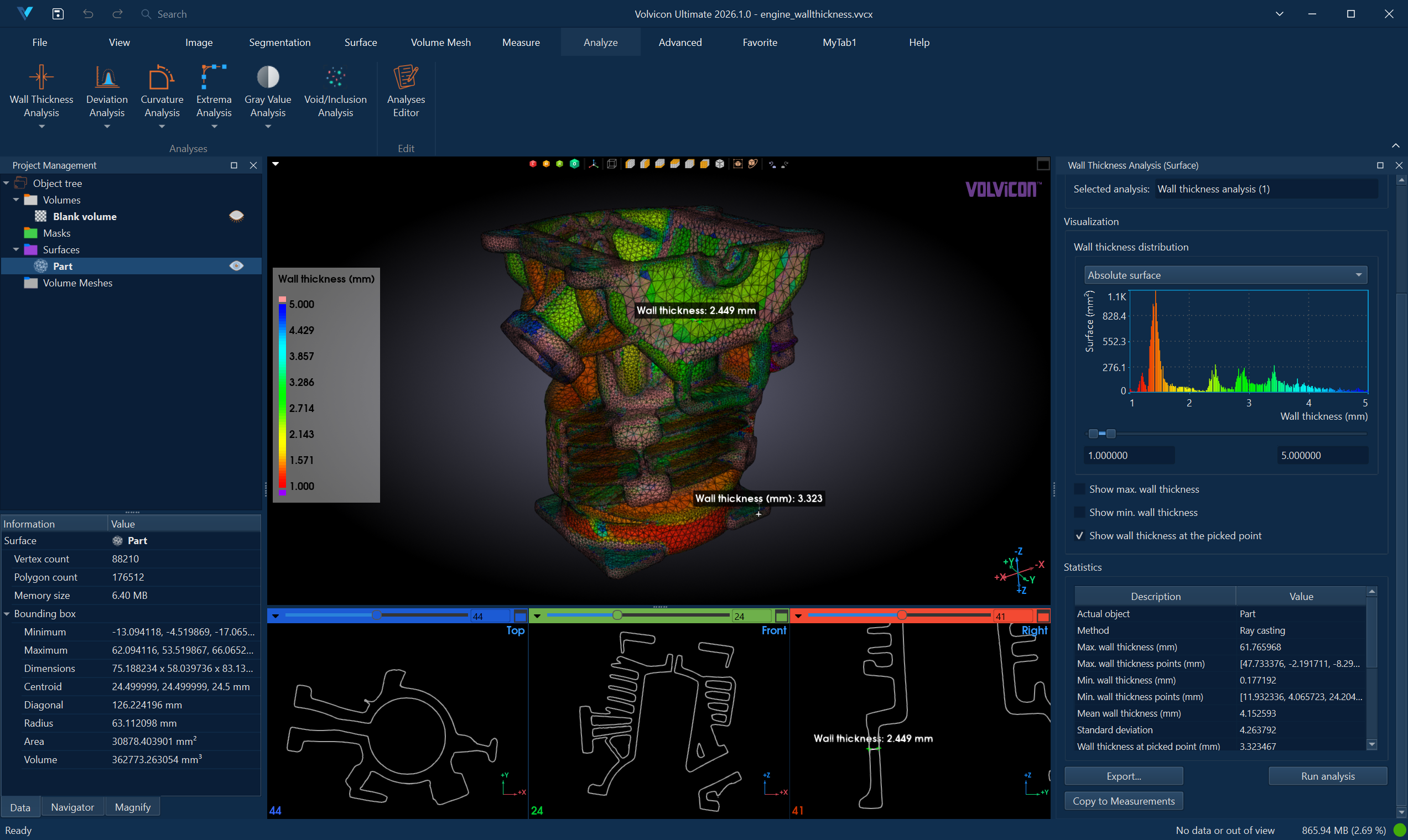
Understanding Wall Thickness Measurement
Wall thickness measurement determines a straight-line distance from each analyzed surface point to an opposing surface contact selected by the configured calculation method. For solid objects, this represents the material thickness along the displayed measurement vector. The vector endpoints lie on the analyzed surface, and its geometric length is the reported thickness. The analysis produces a continuous scalar field mapped to the object geometry, enabling immediate visual identification of regions that may be structurally weak or outside design specifications.
The computed thickness values are displayed as a color gradient on the object surface, with accompanying statistics and histogram visualization showing the distribution of thickness values across the entire part.
Interactive measurement is not restricted to the vertices of the analyzed surface. Picking a point measures the exact position where the surface was clicked, including positions inside a triangle. The search direction there is the interpolation of the surrounding vertex directions, and the measurement uses the same method and parameters as the analysis. On a coarse mesh, the exact picked value can differ from the color interpolated from the stored vertex values. Coarsely tessellated objects can therefore be probed anywhere without first refining the mesh.
Wall thickness measurements are provided for research and quality assessment purposes. Results should be validated by qualified engineers or professionals before making manufacturing, structural, or clinical decisions. Measurement accuracy depends on mesh quality, algorithm parameters, and object geometry.
Accessing the Tool
- Navigate to the Analyze ribbon tab.
- Click the Wall Thickness Analysis button.
- Select the analysis mode from the dropdown menu:
- Analyze Mask – Analyze wall thickness on a mask object's 3D preview surface.
- Analyze Surface – Analyze wall thickness on a triangle mesh surface object.
Analysis Configuration
Creating a New Analysis
- In the Analysis Selection section, click Select analysis to open the Wall Thickness Analysis Editor dialog.
- Click New Analysis to create a new analysis configuration. A new row appears in the table.
- Configure the analysis parameters (detailed below).
- Click Load to load the selected analysis and close the dialog.
Analysis Parameters
The Wall Thickness Analysis Editor provides the following configuration options:
| Parameter | Description |
|---|---|
| Analysis Name | User-defined name for the analysis. Double-click to rename. |
| Actual Object | The mask or surface object to analyze. |
| Surface Quality | (Mask analysis only) Quality of the 3D preview surface: Optimal, High, Medium, or Low. Higher quality provides more accurate results but increases computation time. |
| Method | Algorithm used for thickness calculation: Ray Casting or Shrinking Sphere. |
| Max. Wall Thickness (mm) | Maximum thickness to search for. Set to 0 for unlimited search, or specify a value to limit the search range and improve performance. |
| Search Angle (deg) | Shrinking Sphere cone half-angle for finding opposite surface contacts. Wider angles cover more curved or coarse geometry, but can select a different wall and require more computation. |
| Above Max. Range Color | Color displayed for thickness values above the visualization range. |
| LUT | Lookup table (color map) for visualizing thickness values. |
| Below Min. Range Color | Color displayed for thickness values below the visualization range. |
| Tolerance Limits | Opens the Wall Thickness Tolerance Limits dialog of the analysis. Tolerance evaluation is optional, so the limits are edited there instead of in the row. Hover over the button to see the current limits. See Tolerance Evaluation. |
| Range (mm) | Current visualization range (read-only, updated after analysis). |
Calculation Methods
The tool provides two algorithms for calculating wall thickness:
Ray Casting (Bidirectional)
The ray casting method projects rays from each surface point along the surface normal in both directions (inward and outward) to find the opposing surface intersection. This method is:
- Fast: Efficient for large meshes and typical geometries.
- Accurate for parallel surfaces: Works well when inner and outer surfaces are roughly parallel.
- Suitable for: Thin-walled structures, shells, and objects with consistent wall geometry.
Shrinking Sphere
The shrinking sphere method starts with a sphere derived from the normal-direction ray hit and iteratively shrinks it while keeping its center on the normal line. Intersecting triangles are evaluated to find the converged opposing surface contact. The reported thickness is the straight-line distance from the analyzed point to that contact—not the sphere diameter. Therefore, the displayed measurement vector always connects two surface points and its geometric length equals the reported thickness. This method is:
- Designed for curved surfaces: Handles non-parallel and complex surface relationships.
- Better for variable geometry: Provides more meaningful results for organic shapes and tapered walls.
- Computationally intensive: Slower than ray casting but produces more robust results for challenging geometries.
For initial exploration, use Ray Casting for faster results. Switch to Shrinking Sphere when analyzing curved or complex geometries where ray casting may produce artifacts.

The methods can produce different thickness values because they can select different opposing contacts. For repeatable inspection comparisons, use the same method, maximum wall thickness, search angle, mesh preparation, and surface quality for every part in the comparison.
Search Parameters
Maximum Wall Thickness
This parameter limits the search distance for finding opposing surfaces:
- Set to 0 to search the entire object without limits.
- Set to a specific value when you know the approximate maximum thickness, improving performance by avoiding unnecessary calculations.
- For best performance, set this value slightly larger than the expected maximum thickness.
Search Angle
The search angle defines a cone around each surface normal within which the algorithm looks for opposing surface points:
- Smaller angles (5–15°): More accurate results for high-quality meshes with smooth geometry.
- Larger angles (20–45°): Better detection on coarse meshes or surfaces with high curvature, but searches more geometry and can select a different wall.

For inspection workflows, use the smallest angle that consistently reaches the intended opposing wall and record the value with the analysis settings.
Tolerance Evaluation
Tolerance evaluation checks the results of the analysis against permissible limits and reports a single pass or fail status. It is optional and off by default.
To set it up, click the button in the Tolerance Limits column of the analysis in the Wall Thickness Analysis Editor. The dialog that opens holds the whole tolerance setup: the check box that turns the evaluation on and the three pairs of permissible limits.
Each limit is independent and can be left unspecified, so an analysis can constrain only the quantities that matter to it. Clear the check box in front of a limit to leave it out of the evaluation.
| Limit | Checked against |
|---|---|
| Min. Thickness | The smallest measured wall thickness must be greater than or equal to it. |
| Max. Thickness | The largest measured wall thickness must be less than or equal to it. |
| Mean Limits | The mean wall thickness must lie inside the specified range. |
| Std. Deviation Limits | The standard deviation of the wall thickness values must lie inside the specified range. |
Specifying only the upper limit of a range constrains the value from above only, and specifying only the lower limit constrains it from below only.
The two limits of a range are kept in order while you edit them. Raising a lower limit above its upper limit moves the upper limit with it, so a range can never be left in a state that cannot be evaluated.
Turning the evaluation off keeps the limits, so it can be turned back on at any time.
The result is reported as Tolerance status in the statistics table: In tolerance when every specified limit is met, Out of tolerance when at least one is not, and Not evaluated when the limits are off, empty, or inconsistent with each other. Limits are always specified in millimeters and are never negative.
Not evaluated is not a pass. It means the evaluation did not run.
Positions where no opposing surface could be reached carry no thickness value and are left out of the thickness statistics, so they do not affect the tolerance status. In the area statistics, those positions are included in Area above max. range (%) together with valid thickness values above the selected visualization range; that row is therefore not a separate measure of missing thickness values.
Unlike the visualization range, tolerance limits do not change the color mapping. They are stored with the analysis and are restored when the project is reopened.
While a point is picked, its own thickness is additionally checked against the Min./Max. Thickness limits and reported as Picked point tolerance status. The mean and standard deviation limits describe the analysis as a whole and are not applied to a single position.
Running the Analysis
- After loading an analysis configuration, click Run Analysis.
- A progress dialog appears while the analysis computes.
- Upon completion:
- The object displays color-mapped thickness values in 3D and 2D views.
- The histogram updates with the thickness distribution.
- The statistics table populates with summary metrics.
Interpreting Results
Visualization
The analyzed object displays a color gradient representing thickness values:
- Cool colors (blue/green): Lower thickness values.
- Warm colors (yellow/red): Higher thickness values.
- Below range color: Indicates regions thinner than the selected minimum range.
- Above range color: Indicates regions thicker than the selected maximum range.
Use the histogram range sliders to focus on specific thickness intervals and identify regions of interest.
By default, the thickness distribution is shown as bars in the Interactive Histogram Chart. The bars carry the colors of the color map, so the chart and the color-mapped object can be read together. Scroll to zoom, drag inside the plot to evaluate a thickness interval, and right-click to reach the display options and the export actions.
Statistics
The statistics table displays key metrics:
| Statistic | Description |
|---|---|
| Minimum | Thinnest region on the object (mm). |
| Maximum | Thickest region on the object (mm). |
| Mean | Average thickness across all analyzed points (mm). |
| Standard Deviation | Variation in thickness values (mm). |
| Min./Max. permissible …, Tolerance status, Picked point tolerance status | Shown only while tolerance evaluation is enabled. See Tolerance Evaluation. |
| Surface Area | Total analyzed surface area (mm²). |
| Surface Area in Range | Area with thickness values within the selected range (mm²). |
| Relative Surface Area in Range | Percentage of surface within the selected range (%). |
Interactive Features
| Feature | Description |
|---|---|
| Show Maximum | Displays an annotation at the thickest point, showing the location and value. |
| Show Minimum | Displays an annotation at the thinnest point, showing the location and value. |
| Pick Point | Enable interactive picking to measure the thickness at any clicked location on the object, including positions inside a triangle. The measurement line runs from the clicked position to the opposing surface contact. No value is reported when no opposing surface can be reached from that position. |
For both calculation methods, thickness annotations are distance measurements whose endpoints correspond to the stored surface contacts. The displayed line length, annotation value, exported thickness, and reported statistics use the same distance.
When picking points on mask-based analyses, the 2D slice views automatically update to center on the clicked location.
Typical Workflows
Quality Control for Additive Manufacturing
- Import or segment the printed part.
- Create a new Wall Thickness Analysis for the part.
- Set the method to Shrinking Sphere for curved geometries.
- Set Max. Wall Thickness to slightly exceed the design maximum.
- Run the analysis.
- Use the histogram to identify regions below the minimum specification.
- Enable Show Minimum to locate the thinnest area.
- Export a PDF report for documentation.
Design Validation
- Generate a surface from the CAD design or segmentation.
- Configure Wall Thickness Analysis with appropriate parameters.
- Run the analysis to visualize thickness distribution.
- Adjust the range sliders to highlight regions outside tolerance.
- Use Copy to Measurements to transfer annotations for reporting.
Comparing Manufacturing Variations
- Create separate analyses for each part variation.
- Use consistent parameters across all analyses.
- Compare statistics tables to identify differences.
- Generate reports for each analysis for side-by-side comparison.
Exporting Results
CSV Export
Click Export and select CSV to save:
- Statistical summary data
- Thickness distribution histogram data
- Per-point thickness values (optional)
PDF Report
Click Export and select PDF Report to generate a formatted document containing:
- Analysis configuration and parameters
- 3D visualization screenshots
- Histogram and statistics
- Minimum and maximum location annotations
- Permissible limits and tolerance status when tolerance evaluation is enabled
CSV exports, PDF data tables, and scripting-generated result files follow the selected visualization range. A valid thickness below the range is reported as -inf, and one above the range is reported as +inf. These labels indicate range classification; they do not replace the computed numeric thickness stored by the analysis and available through the scripting API.
A picked point is labeled -inf or +inf when it lies where the object is colored as being below or above the range, so the reported label always agrees with the color under the cursor. It is labeled n/a when no opposing surface can be reached from that position. Everywhere else it is reported as its numeric value, measured at the clicked position rather than taken from the nearest stored sample.
See PDF Report for detailed report customization options.
Best Practices
-
Verify mesh quality: Run Diagnostics and Fixes on surfaces before analysis to ensure accurate results.
-
Start with conservative parameters: Use default settings initially, then refine based on results.
-
Match surface quality to requirements: For mask analyses, use Optimal quality for final reports and Medium for quick exploration.
-
Consider geometry when selecting method: Ray Casting for simple shapes; Shrinking Sphere for complex curves.
-
Document analysis parameters: Include parameter settings in reports for reproducibility.
-
Validate against known references: When possible, compare results against physical measurements or known CAD dimensions.
Troubleshooting
| Issue | Possible Cause | Solution |
|---|---|---|
| Analysis shows unexpected zero values | Maximum wall thickness too small | Increase the Max. Wall Thickness parameter |
| Noisy thickness map | Coarse mesh or high surface curvature | Use Shrinking Sphere method; increase surface quality for masks |
| Missing thickness in some regions | Non-manifold mesh or holes | Run Diagnostics and Fixes to repair the surface |
| Long computation time | Very fine mesh, unlimited search, or an unnecessarily wide Shrinking Sphere search angle | Set a reasonable Max. Wall Thickness limit and use the smallest reliable Search Angle |
| Shrinking Sphere selects an unexpected opposing region | Search angle is too wide for the local geometry | Reduce the Search Angle and verify the surface normals and mesh quality |
Related Resources
- Analyze Tab Overview – Overview of all analysis tools
- Deviation Analysis – Compare objects to identify geometric differences
- Surface Diagnostics and Fixes – Repair mesh issues before analysis
- Interactive Histogram Chart – Reading, navigating, and evaluating the distribution chart
- PDF Report – Generate analysis reports
- Analysis Operations API – Scripting support for analysis automation