Render Properties
The Render Properties tool controls how volume meshes are displayed in the 3D view. This includes representation mode, element edge visibility, lighting effects, and bounding box overlays. Adjusting these settings helps optimize visualization for different analysis and presentation needs.
Accessing the Tool
Navigate to the Volume Mesh ribbon tab and click Render Properties in the General section. The tool panel opens with settings for the currently active volume mesh.
Render Tab
The Render tab contains the primary visualization controls.
Draw Settings
Representation
Controls the rendering primitive type for the volume mesh:
| Option | Description |
|---|---|
| Points | Display only vertex positions as discrete points |
| Wireframe | Show element edges without filled faces |
| Solid | Render element faces as opaque surfaces |
| Solid edges | Combine solid face rendering with visible element edges |
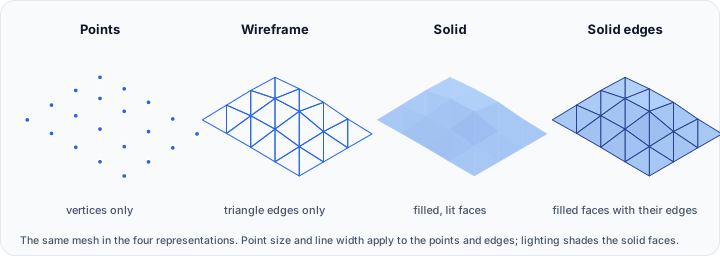
The Points representation is useful for examining vertex distribution or when working with very large meshes where solid rendering would be slow. Wireframe mode reveals the internal mesh structure, showing how elements are connected. Solid mode provides a realistic appearance suitable for presentations. Solid edges combines the realistic appearance with visibility of the underlying mesh structure.
Point Size
Adjusts the size of rendered vertices when using Points representation.
| Parameter | Range | Default |
|---|---|---|
| Point size | 1 - 16 | 1 |
Increase point size to improve visibility when vertices are sparse or when viewing from a distance.
Line Width
Controls the thickness of element edges when using Wireframe or Solid edges representation.
| Parameter | Range | Default |
|---|---|---|
| Line width | 1 - 16 | 1 |
Thicker lines improve visibility of the mesh structure but may obscure fine details in dense regions.
Other Options
Lighting
Toggle lighting calculations on or off for the volume mesh rendering.
When enabled, lighting provides depth cues through shading based on element face orientations relative to light sources. This creates a more three-dimensional appearance. Disabling lighting results in flat shading where all faces appear with uniform brightness, which can be useful for examining mesh structure without visual distractions.
Clipping
Toggle whether the volume mesh is affected by 3D clipping planes.
When enabled, the volume mesh will be cut by any active clipping planes, allowing you to see internal structure. When disabled, the mesh is rendered in its entirety regardless of clipping plane positions.
Widgets Tab
The Widgets tab controls auxiliary visual elements that provide spatial reference.
Bounds
These options add visual overlays showing the spatial extent of the volume mesh:
| Widget | Description |
|---|---|
| Scale axes | Display graduated scale bars along each axis |
| Outline bounding box | Show a wireframe box around the mesh extents |
| Corner bounding box | Display corner markers at bounding box vertices |
| Axes labels | Show axis labels (X, Y, Z) at appropriate positions |
Each widget has an associated color button for customization. Click the color button to open a color picker and select a custom display color.
Scale axes are particularly useful when presenting results or screenshots, providing viewers with dimensional reference. Bounding boxes help understand the spatial extent of the mesh relative to other objects in the scene.
Practical Usage
Mesh Quality Inspection
To examine mesh quality and element distribution:
- Set representation to Wireframe or Solid edges
- Enable Lighting for depth perception
- Increase Line width if edges are difficult to see
- Enable Clipping and position clipping planes to view internal structure
Presentation Mode
For professional screenshots or presentations:
- Set representation to Solid or Solid edges
- Enable Lighting for realistic appearance
- Enable Scale axes or Outline bounding box for dimensional reference
- Customize widget colors to match your presentation theme
Large Mesh Performance
When working with very large meshes that render slowly:
- Set representation to Points or Wireframe for faster rendering
- Disable Lighting to reduce computation
- Use Clipping to view only regions of interest
Related Tools
- Transform - Modify volume mesh position and orientation
- Interactive Transform - Visual manipulation of volume meshes
- Configure FEM Model - Define FEM model properties