Configure FEM Model
The Configure FEM Model tool provides visualization and management of finite element model (FEM) components associated with a volume mesh. This includes node sets, element sets, boundary surfaces, and parts that are essential for defining boundary conditions, material properties, and output requests in finite element analysis.
Accessing the Tool
Navigate to the Volume Mesh ribbon tab and click Configure FEM Model in the FEM section.
Understanding FEM Components
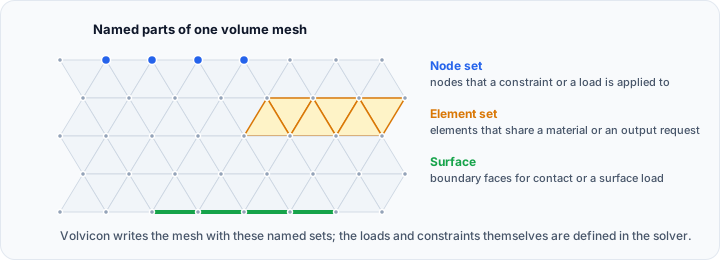
Finite element models require more than just mesh geometry. They need organizational structures that define:
- Node sets: Collections of nodes for applying boundary conditions (constraints, loads)
- Element sets: Groups of elements for material assignment and output requests
- Surfaces: Boundary face collections for contact definitions and surface loads
- Parts: Logical groupings of elements representing distinct components
These components are defined during mesh import (from FEM solver formats like Abaqus or CalculiX) or can be created automatically when exporting.
Target Volume Mesh
The tool always works on the active volume mesh object, which is what the Target volume mesh list shows. To configure a different mesh, make it the active one by clicking its name in the Scene Tree; the panel follows the change.
Model Statistics
The Model statistics section displays an overview of the FEM model:
| Statistic | Description |
|---|---|
| Nodes | Total number of nodes in the mesh |
| Elements | Total number of elements, whatever their type |
| Materials | Number of material definitions |
| Parts | Number of part definitions |
This provides a quick overview of the model complexity and completeness.
Node Sets
Node sets are collections of node identifiers used to apply boundary conditions such as:
- Displacement constraints (fixed supports)
- Applied forces or moments
- Prescribed temperatures
- Contact definitions
Visualizing Node Sets
- Check the Node sets checkbox to enable visualization
- All node sets are displayed by default
- Select specific sets in the list to visualize only those (multi-select with Ctrl+Click)
- Nodes are rendered as highlighted points in the 3D view
The list shows each node set name along with the number of nodes it contains.
Element Sets
Element sets group elements for:
- Material property assignment
- Output variable requests
- Section definitions
- Initial conditions
Visualizing Element Sets
- Check the Element sets checkbox to enable visualization
- All element sets are displayed by default
- Select specific sets in the list to visualize only those
- Elements are highlighted in the 3D view
The list shows each element set name along with the number of elements it contains.
Surfaces
Surfaces define collections of element faces on the mesh boundary, used for:
- Pressure loads
- Contact pair definitions
- Surface-to-surface tie constraints
- Distributed surface loads
Visualizing Surfaces
- Check the Surfaces checkbox to enable visualization
- All surfaces are displayed by default
- Select specific surfaces in the list to visualize only those
- Surface faces are highlighted in the 3D view
The list shows each surface name along with the number of faces it contains.
Parts
Parts represent logical divisions of the model, typically corresponding to:
- Physical components in an assembly
- Regions with different material properties
- Manufacturing-defined sections
Visualizing Parts
- Check the Parts checkbox to enable visualization
- All parts are displayed by default
- Select specific parts in the list to visualize only those
- Part elements are highlighted in the 3D view
The list shows each part name along with the number of elements it contains.
Actions
Refresh
Click Refresh to update all lists and visualizations. This is useful after:
- Importing new FEM data
- Modifying the volume mesh
- Switching between volume meshes
Export
Click Export... to open the FEM Export Dialog for exporting the configured model to an FEM solver format.
Workflow Example
Verifying Imported FEM Model
After importing a volume mesh from an Abaqus input file:
- Open Configure FEM Model
- Check Model statistics to verify node and element counts
- Enable Node sets visualization
- Select each node set to verify boundary condition locations
- Enable Surfaces visualization
- Verify contact surfaces are correctly defined
- Proceed to Export when satisfied
Preparing for Export
Before exporting to an FEM solver:
- Open Configure FEM Model
- Verify all required sets and surfaces exist
- Check that parts have appropriate material assignments (via Export dialog)
- Use visualization to confirm correct geometry groupings
- Click Export... to proceed
Related Tools
- Export FEM Mesh - Export volume mesh for FEM analysis
- Render Properties - Control volume mesh visualization
- Transform - Modify mesh position before export