Slice Views
The Slice Views section of the View tab controls how the three orthogonal 2D views behave and what they draw. These tools help navigate volumetric data and correlate positions across views.

The three slice views are named after the active orientation preset: Right, Front, and Top under the engineering presets, and Plane 1 (YZ), Plane 2 (XZ), and Plane 3 (XY) under the medical presets. This page uses the plane names. See Orientations.
3D Contours
Display intersection contours where 3D objects cross the current slice plane. Contours provide visual correlation between 3D geometry and 2D slices.
Enabling Contours
Click 3D Contours to access the dropdown menu:
| Option | Description |
|---|---|
| Mask(s) Preview | Show contours for mask 3D preview surfaces |
| Surface(s) | Show contours for imported or generated surface models |
| Volume Mesh(es) | Show contours for volume mesh objects |
Each option toggles visibility for all objects of that type. The contour color matches the object's assigned color.
Use Cases
- Verify mask boundaries align with anatomical structures
- Check surface model accuracy against the original image data
- Validate volume mesh positioning
Contours update automatically as you scroll through slices, providing real-time feedback on object placement.
Crosshair
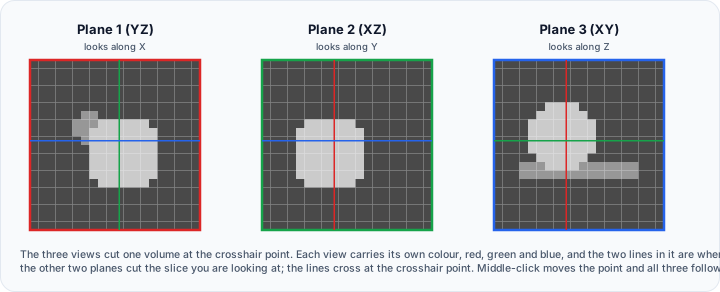
The crosshair displays reference lines indicating the position of the other two orthogonal slice planes. It helps maintain spatial orientation when navigating through the volume.
Enabling the Crosshair
Click Crosshair in the ribbon to toggle visibility. When enabled, colored lines appear in each slice view:
- The lines represent the intersection of the perpendicular slice planes
- Colors correspond to the slice view colors (typically red, green, blue for Plane 1 (YZ), Plane 2 (XZ), Plane 3 (XY))
Setting the Crosshair Position
| Action | Method |
|---|---|
| Click to set position | Press the middle mouse button in any slice view or the 3D view |
| Dynamic positioning | Hold Alt and move the mouse in a slice view |
When you set a new crosshair position, all slice views update to show the corresponding location.
Crosshair in 3D View
The crosshair also appears in the 3D view as three intersecting planes or lines (depending on slice plane visibility settings), showing the current position within the volume.
Use the crosshair to quickly navigate to a point of interest. Click on a feature in one view, and the other views will display the corresponding slices.
Workflow: Navigating to a Specific Anatomical Location
- Open the View tab and enable Crosshair in the Slice Views section
- Navigate to any slice view where you can see the structure of interest
- Press the middle mouse button on the structure
- The crosshair jumps to that location and all slice views update to show the corresponding position
- The 3D view (if visible) also updates to show the crosshair intersection
Workflow: Dynamic Crosshair Navigation
- Enable Crosshair from the View tab
- Hold the Alt key on your keyboard
- Move the mouse over any slice view
- The crosshair follows the mouse cursor in real-time
- All views update continuously, allowing you to explore the volume interactively
- Release Alt to stop dynamic navigation
Window/Level
Window/Level opens a control panel for the brightness and contrast of the slice views. It offers presets, a histogram with draggable range boundaries, direct min/max inputs, Auto and Full Range buttons, lookup tables, and mouse adjustment in the slice views.
The window and the level reach the slice views only in the Standard slice display. Opening the panel while one of the gray value interval modes is in effect asks whether Slice Display should be changed to Standard.
See Window/Level for the full description of the panel, its presets, and its scripting API.
Slice Display
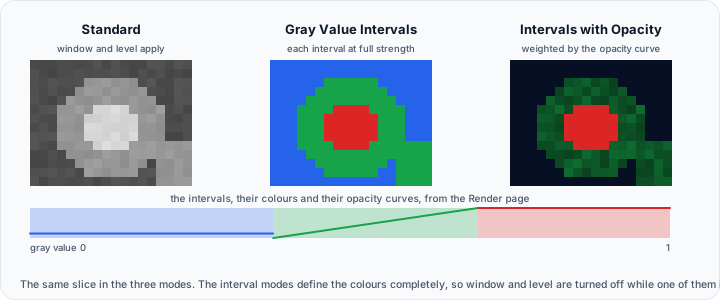
Slice Display selects how the slice views map the gray values of the active volume to colors. The setting is shared by all three slice views and is stored with each volume, so activating another volume or reopening the project restores the mode that volume was last shown in.
Click Slice Display in the ribbon and choose a mode:
| Mode | Description |
|---|---|
| Standard | Shows the slices with the brightness, contrast, and color of the volume itself. Window and level are available |
| Gray Value Intervals | Shows the slices with the colors assigned to the gray value intervals, at full strength |
| Gray Value Intervals with Opacity | Shows the interval colors weighted by their opacity curves, so the curves define the contrast |
The same menu is available from the right-click menu of a slice view and from the Visibility menu of the 2D view controller. All three stay in sync.
Gray Value Intervals
The two interval modes use the intervals, colors, and opacity curves defined on the Render page of Render Properties. They apply to the slice views and to the slice planes of the 3D view alike.
Both interval modes define the displayed colors completely, so the window and level settings are turned off while one of them is active. Switching back to Standard restores the previous display exactly, because the window and level of the volume are never changed by these modes.
A volume whose intervals have not been defined yet has no interval colors to switch to, so the mode falls back to Standard. Open the volume on the Render page of Render Properties once to define them.
Mode Change Prompts
Two tools depend on the selected mode, so opening one of them while the slice views are in a mode it cannot work in asks whether the mode should be changed:
| Tool | Asked when | Offered mode |
|---|---|---|
| Window/Level | A gray value interval mode is in effect, which turns the window and level settings off | Standard |
| Render Properties | Standard is in effect, which keeps the interval colors out of the slice views | Gray Value Intervals with Opacity |
Answer Yes to change the mode right away, or No to keep the current one and open the tool as it is. Each question carries a Do not show this message again check box that turns it off for good; the setting is stored per user and applies to every project.
Nothing is asked when the mode already matches the tool, and the Render Properties question is skipped for a volume that has no interval colors yet, because there would be nothing to switch to.
Voxel Information
The Voxel Information button opens a menu with four display modes: None, Status Bar, Mouse Hover, and Both.
When the selected mode includes Status Bar, the status bar displays real-time data about the voxel under the mouse cursor:
| Information | Description |
|---|---|
| Position | X, Y, Z coordinates in physical units (typically mm) |
| Index | Voxel indices in the volume grid (i, j, k) |
| Value | Intensity or grayvalue at the cursor location |
Enabling Voxel Information
Click Voxel Information in the ribbon and choose a display mode:
- None: hides voxel information completely
- Status Bar: shows voxel information in the status bar only
- Mouse Hover: shows voxel information next to the mouse pointer only
- Both: shows voxel information in both places
When the cursor is over a visible mask, the voxel readout also includes the mask name; multi-label masks add the active label number and any annotation attached to that label.
When the selected mode includes visible output:
- Move the mouse over any slice view
- The selected output location updates continuously with current voxel data
- Data clears when the mouse leaves the slice view or when the feature is disabled
Use Cases
- Verify intensity values for thresholding decisions
- Check spatial coordinates for measurement validation
- Inspect data quality in specific regions
Combine Voxel Information with the crosshair to identify exact positions across all three orthogonal views.
Link Slice Views
Link Slice Views synchronizes camera operations across all three slice views. When enabled, panning or zooming in one view applies the same transformation to the others.
Behaviour when enabled
| Action | Result |
|---|---|
| Zoom in one view | The other two views take the same zoom level |
| Pan in one view | The other two views follow, along the axes they share with the view you are working in |
Turning the link on or off re-fits all three slice views once, so they start from a common frame.
Behaviour when disabled
Each slice view zooms and pans on its own, and the other two are left as they are.
When to Use
- Enable when comparing features at the same scale across views
- Enable when maintaining consistent magnification is important
- Disable when you need different zoom levels for each view
- Disable when focusing on one view while keeping others at overview scale
The link covers zoom and pan only. Slice positions are independent of it: use the Crosshair to move all three views to the same point, and R or Shift+R to reset one or all slice view cameras.
The slice view right-click menu
Right-clicking inside a slice view opens a menu that gathers the Slice Views ribbon controls next to two entries that only make sense for the view that was clicked. The ribbon entries and the menu entries drive the same settings, so the two can never disagree.
| Entry | What it does |
|---|---|
| 3D Contours | The same three toggles as the ribbon button: Mask(s) Preview, Surface(s), Volume Mesh(es) |
| Crosshair | Turns the crosshair on or off |
| Window/Level | Opens the Window / Level panel |
| Slice Display | Standard, Gray Value Intervals, Gray Value Intervals with Opacity |
| 3D Slice Plane | Shows or hides the clicked view's plane in the 3D view, sets it as a clip plane (Off, Keep Front, Keep Back), and shows or hides the slice planes of every volume at once |
| Voxel Information | None, Status Bar, Mouse Hover, Both |
| Link Slice Views | Turns camera synchronisation on or off |
| Locate | Moves the crosshair centre to the point that was right-clicked, so the other two views jump to it. Offered only when the click landed on the image |
| Match 3D to Slice | Orients the 3D camera to look along the clicked view's plane, so the 3D view shows the scene from the same direction as this slice |
| Copy to Clipboard | Copies an image of the clicked view to the system clipboard, at its current on-screen size |
The same images are available from Copy Screenshot in the Scene section of the View tab, which lists all three slice views alongside the application window, the scene layout, and the 3D view. To save an image to a file instead, use Save Screenshot.
Slice navigation
Slice navigation is not part of the Slice Views ribbon section, but it is what most 2D work is made of:
| Action | Method |
|---|---|
| Step through slices | Turn the mouse wheel over a slice view |
| Jump to a slice number | Drag the slider under the view, or type the number in the box beside it |
| Jump to a point in all three views | Enable the crosshair and press the middle mouse button, or right-click and choose Locate |
| Fit the current slice view | Give it focus and press R |
| Fit all three slice views | Give one focus and press Shift+R |
| Return to the middle slice and fit every view | Reset Slice Views in the Camera section |
Related Topics
- View Tab Overview – Complete View tab reference
- Window/Level – Brightness and contrast of the slice views
- Layouts – Workspace arrangement options
- Camera – View reset and camera controls