3D View
The 3D View section of the View tab provides controls for rendering volumetric data, masks, surfaces, and meshes in the three-dimensional display. Adjust visualization modes, show scene helpers, and configure shading for different analysis and presentation needs.
In addition to the ribbon tools, the 3D view controller overlay can open the 3D View Settings dialog. That dialog contains GPU rendering options and renderer choices, including:
- Volume renderer: choose between Single volume renderer (default) and Multi-volume renderer for grayscale volumes.
- Mask direct renderer: choose between Single volume renderer and Multi-volume renderer for direct mask previews.
The grayscale volume renderer setting updates the currently loaded volumes immediately. The direct mask preview renderer setting also updates the currently loaded direct mask previews immediately.
See 3D View Settings for the full settings reference - performance, visualization, floor shadows, back face coloring, and scene appearance - together with scripting examples.
Mask 3D Preview (Mesh)
Masks are stored as voxel label maps and do not have inherent 3D geometry. The Mask 3D Preview (Mesh) feature generates surface representations from visible masks for display in the 3D view.
Generating Previews
Click Mask 3D Preview (Mesh) to generate surfaces for all currently visible masks. The generation uses the selected quality level. If Mask 3D Preview (Direct) is active, Volvicon turns it off first so the generated mesh preview becomes the active 3D representation.
Quality Levels
Use the dropdown menu to select a quality setting before generating:
| Quality | Description | Use Case |
|---|---|---|
| Optimal | Full resolution; accurate geometry | Measurements, final visualization |
| High | Slight downsampling | General review with good detail |
| Medium | Moderate downsampling | Performance-sensitive workflows |
| Low | Significant downsampling | Quick previews, large datasets |
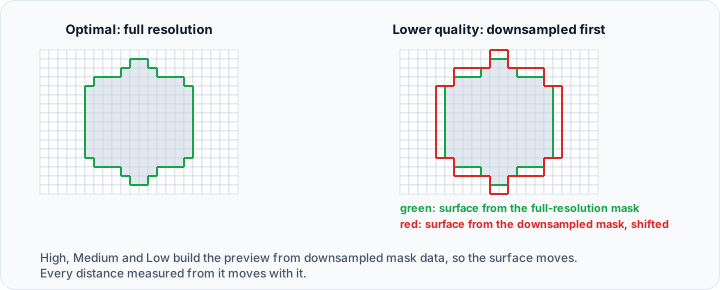
High, Medium, and Low quality modes downsample mask data before surface generation. This may introduce slight geometric shifts and reduced detail. Use Optimal quality when accurate measurements or precise geometry are required.
Removing Previews
Select Remove All Previews from the Mask 3D Preview (Mesh) dropdown to clear generated surfaces. This does not affect the underlying mask data.
Automatic Regeneration
If enabled in Preferences, existing mesh previews are updated automatically when a visible mask with a valid mesh preview is modified.
If an invisible mask already has a mesh preview, that preview is invalidated instead of regenerated and must be rebuilt the next time you want to show it as a mesh in 3D.
Automatic regeneration applies only to Mask 3D Preview (Mesh). In Mask 3D Preview (Direct) mode, mask edits are shown immediately from the mask volume and no preview mesh is regenerated.
Multilabel Mask Surfaces
For masks that contain more than one label, you can control how each label's surface is built from File → Preferences → 3D View → Mask 3D preview settings → Multilabel mask.
- Accurate surface detection (enabled by default) builds every label independently as a smooth surface designed to be closed. Use it for quality analysis, dimensional inspection, NDT review, per-label measurement, or separate surface export. It can take substantially longer for masks with many labels and does not produce one shared multi-label interface mesh.
- Smooth closed labels builds all labels together and includes every shared boundary in both adjacent label surfaces. Use it for faster closed-label previews, per-label visualization, or export when partial-gray reconstruction is unnecessary. Shared interfaces appear twice as coincident faces in the combined preview.
- Smooth shared interfaces keeps only one copy of each shared boundary and assigns it to one participating label. Use it for combined interface visualization or meshing preparation when duplicate internal faces are undesirable. Individual separated labels may be open.
- Voxelized conforming keeps the boundary unsmoothed and aligns adjacent labels at shared vertices where possible. Use it for voxel-derived segmentation review or tools that accept discrete topology. Coincident faces and non-manifold edges can remain.
The last three choices are available from Surface extraction algorithm only when Accurate surface detection is turned off.
Closed-label modes are designed to include every boundary required by each label, but preview generation alone does not certify a surface as manifold, watertight, or ready for simulation. Validate topology before quality measurements, surface export, volume meshing, or FEM analysis.
See Preferences → 3D View Settings for details.
Mask 3D Preview (Direct)
Mask 3D Preview (Direct) renders masks directly as GPU volumes in the 3D view, without generating a surface mesh. Mask edits are reflected in the 3D view immediately, so no mesh generation step is required.
Enabling Direct Mode
Click Mask 3D Preview (Direct) in the ribbon or the corresponding toggle in the 3D view toolbar overlay. When active, direct volume rendering is enabled for masks.
The selected direct-preview state is stored with the project and becomes the default preview mode for masks created in that project.
All masks, both binary and multi-label, are visualized using their assigned colors. Multi-label masks display each label in its own color without color bleeding between adjacent regions.
Disabling Direct Mode
Click Mask 3D Preview (Direct) again to disable direct mode. Masks then use mesh preview mode. Existing mesh previews reappear if they are already available; otherwise click Mask 3D Preview (Mesh) to calculate them.
Direct mode is also automatically disabled when any Mask 3D Preview (Mesh) quality option is used. The two preview modes are mutually exclusive.
Surface-based tools such as mask analyses and Mask To Surface use mesh previews. If direct mode is active, Volvicon switches masks back to mesh preview before generating the required surface preview.
For best interaction quality, keep 3D view → View settings → Performance → Quality at Maximum while Mask 3D Preview (Direct) is enabled. Lower settings may show edge artefacts while interacting in the 3D view.
Comparison with Mask 3D Preview (Mesh)
| Feature | Mask 3D Preview (Direct) | Mask 3D Preview (Mesh) |
|---|---|---|
| Real-time updates | Yes, changes visible instantly | No, must regenerate after edits |
| Surface mesh required | No | Yes |
| Multi-label support | Yes | Yes |
| GPU memory usage | Moderate | Low (polygon mesh) |
| Suitable for measurements | Limited | Yes (Optimal quality) |
Use Mask 3D Preview (Direct) during active editing sessions to see mask changes in 3D without waiting for mesh generation. Switch to Mask 3D Preview (Mesh) when you need accurate mesh geometry for measurements or final presentation.
Scripting
view = app.get_view_operations()
view.set_mask_volume_rendering_enabled(True)   # enable volume rendering
view.set_mask_volume_rendering_enabled(False)  # disable it
is_on = view.is_mask_volume_rendering_enabled()
Slice Planes
Slice Planes displays representations of the current slice positions in the 3D view. Each slice plane appears as a semi-transparent rectangle showing where the corresponding 2D view cuts through the volume.
Behavior
- Planes update as you scroll through slices in 2D views
- Color-coded to match slice view colors (Plane 1 (YZ), Plane 2 (XZ), Plane 3 (XY))
- The button opens a menu holding Show All Slice Planes or Hide All Slice Planes and a submenu per plane
- Planes use the same gray value mapping as the slice views, including the interval colors defined on the Render page of Render Properties

Moving a Plane in the 3D View
Hold Shift and drag a plane with the middle mouse button to move it through the volume. When the plane belongs to the active volume, the 2D views follow the new slice position. A plane from another volume moves independently and keeps that volume's saved slice position up to date.
The Shift key is required so that the plain middle mouse button keeps setting the crosshair center in the 3D view while the planes are visible.
The Slice Planes Menu
The Slice Planes button opens a menu:
| Entry | Effect |
|---|---|
| Show All Slice Planes / Hide All Slice Planes | Shows or hides the slice planes of every volume at once |
| Plane 1 (YZ), Plane 2 (XZ), Plane 3 (XY) | Submenus for one plane of the active volume |
Each plane submenu holds:
| Entry | Effect |
|---|---|
| Show in 3D View | Shows or hides this plane on its own |
| Use as Clip Plane | Off, Keep Front, or Keep Back |
The right-click menu of a slice view offers the same entries under 3D Slice Plane, for that view's plane only. Both menus and the Render Properties tool always agree, because they share the same entries.
Showing a Single Plane
Show All Slice Planes appears when at least one plane is hidden; Hide All Slice Planes appears when every plane is shown. To work with one plane, use Show in 3D View in its submenu, in the right-click menu of a slice view, or in the Visibility menu of a 2D view controller.
Cutting the 3D View Open Along a Plane
A slice plane can also cut the objects of the 3D view open, so the scene is only drawn on one side of it. Choose Use as Clip Plane in the plane submenu, then pick which half stays:
| Entry | Effect |
|---|---|
| Off | The plane does not cut |
| Keep Front | The plane cuts and one of the two halves stays |
| Keep Back | The plane cuts and the other half stays |
Which half each entry keeps depends on the orientation of the image data, so if the wrong half disappears, pick the other entry. Choosing Keep Front or Keep Back also shows the plane, because a plane only cuts while it is shown.
See Slice Plane Clipping.

Use Cases
- Correlate 3D structures with their 2D appearance
- Navigate by adjusting slice planes in 3D space
- Present the relationship between 2D slices and 3D anatomy
Axes Planes
Axes Planes displays reference planes along the three principal axes. These fixed planes intersect at the volume origin and provide spatial orientation.
Unlike slice planes, axes planes do not move with slice navigation—they remain fixed at the coordinate system origin.
Volume Shading
Volume Shading toggles lighting calculations for volume-rendered data. When enabled, the renderer simulates how light interacts with the volume, creating depth and surface definition.
Shading Enabled
- Surfaces within the volume show highlights and shadows
- Depth perception is enhanced
- Rendering may be slightly slower
Shading Disabled
- Flat, uniform appearance based solely on transfer function colors
- Faster rendering
- Useful for certain transfer functions designed without lighting
Enable volume shading when using opacity transfer functions that define surfaces within the volume. Disable for maximum intensity projection or when color is the primary differentiator.
Surface Representation
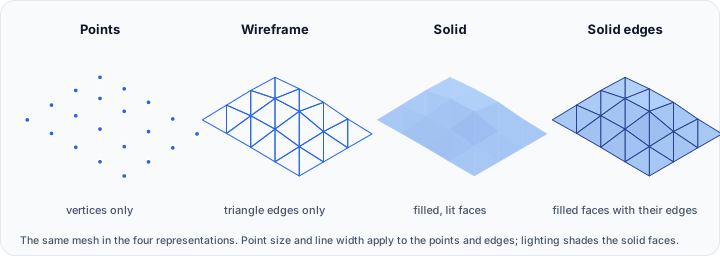
Set how surfaces (including mask previews and volume meshes) are rendered. The selected mode applies to all surface-type objects.
Available Modes
| Mode | Description | Keyboard Shortcut |
|---|---|---|
| Solid | Filled surfaces with no visible edges | S |
| Solid Edges | Filled surfaces with edge lines visible | E |
| Wireframe | Only edge lines displayed | W |
| Points | Only vertices displayed as points | Q |
Behavior
- The active mode is indicated by a pressed button state
- Newly added objects adopt the current representation mode
- Mode changes apply to all objects immediately
Use Cases
| Mode | Best For |
|---|---|
| Solid | General visualization, presentations |
| Solid Edges | Mesh inspection, polygon structure visibility |
| Wireframe | See-through views, overlapping structures |
| Points | Point cloud data, vertex analysis |
Surface Shading
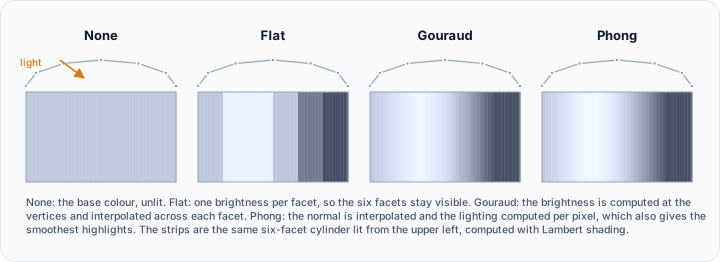
Select the shading algorithm for surface rendering. Shading controls how lighting creates the appearance of depth and material properties.
Available Algorithms
| Algorithm | Description |
|---|---|
| None | No lighting; surfaces show flat, unshaded colors |
| Flat | Per-polygon shading; faceted appearance |
| Gouraud | Smooth shading interpolated across vertices |
| Phong | Per-pixel lighting with smoother highlights |
| Physically Based Rendering (PBR) | Realistic material simulation |
Comparison
| Algorithm | Smoothness | Performance | Realism |
|---|---|---|---|
| None | N/A | Fastest | Lowest |
| Flat | Low | Fast | Low |
| Gouraud | Medium | Fast | Medium |
| Phong | High | Moderate | High |
| PBR | High | Slowest | Highest |
Selecting an Algorithm
Choose from the Shading dropdown menu. The selection applies to all surfaces, mask previews, and volume meshes.
PBR (Physically Based Rendering) produces realistic materials with metallic, roughness, and reflectance properties. It requires more GPU resources but provides accurate light interaction for presentation-quality rendering.
Additional
Additional is the last button of the 3D View section. It opens a menu holding the rendering options that act on every visible object of the 3D view at once, rather than on the active object only.
| Entry | Effect |
|---|---|
| Colors | Draws surface objects with their own color data instead of their single assigned color |
| Object Widgets | Submenu holding the visual helpers that show where the objects of the 3D view are |
Colors
Colors toggles per-vertex color display on surfaces. When enabled, surfaces render using the color data stored at each vertex instead of their single assigned color.
Color data is available for:
- Point clouds with imported color attributes (for example, from scanned data)
- Surfaces with scalar field mappings
- Analysis results mapped to surface geometry
If a surface has no per-vertex color data, it keeps rendering in its assigned solid color and this entry has no visible effect.
Object Widgets
Object widgets are visual helpers that show spatial information about the objects in the 3D view. Additional → Object Widgets opens one submenu per object type:
| Submenu | Applies To |
|---|---|
| Volume | Volume images and rendered volumes |
| Surface | Surface models and mask previews |
| Volume Mesh | Finite element and volumetric meshes |
Each type carries its own pair of entries, so the three types can be outlined independently:
| Entry | Effect |
|---|---|
| Toggle Outline | Shows or hides a full bounding box around the visible objects of that type |
| Toggle Corner Outline | Shows or hides corner markers only, which is less visually intrusive |
Use them to:
- Visualize object extents without obscuring content
- Compare relative sizes and positions of multiple objects
- Verify alignment between different data types
Common Workflows
Workflow: Creating a 3D Preview of a Segmented Mask
- Ensure the mask you want to preview is visible (check the Scene Tree)
- Open the View tab in the ribbon
- In the 3D View section, click the dropdown arrow on Mask 3D Preview (Mesh)
- Select Optimal for full-resolution geometry (or High/Medium for faster generation)
- Click Mask 3D Preview (Mesh) to generate the surface
- The 3D preview appears in the 3D view
Use Optimal quality when you need accurate geometry for measurements. Use lower quality settings for quick previews of large datasets.
Workflow: Inspecting Mesh Structure
- Import or generate a surface model
- In the 3D View section, click Solid Edges to display the mesh with visible edges
- Alternatively, click Wireframe to see only the edge lines
- Use the Shading dropdown to select Flat shading to emphasize individual faces
- Zoom in to inspect mesh density and quality
Workflow: Visualizing Point Cloud Data
- Import point cloud data as a surface
- In the 3D View section, click Points representation
- Open Additional and select Colors if the point cloud has per-vertex color data
- Adjust lighting using Light Studio for better visibility
- Use Shading → None for unlit point display
Workflow: Setting Up a Multi-Object Scene
- Load or generate multiple objects (volumes, surfaces, masks)
- Click Additional → Object Widgets → Volume → Toggle Outline to show bounding boxes
- Repeat for surfaces and volume meshes as needed
- Enable Slice Planes to visualize where 2D views intersect the volume
- Enable Axes Planes for coordinate system reference
Keyboard Shortcuts
The 3D view supports keyboard shortcuts for quick access to common operations:
| Key | Action |
|---|---|
| S | Solid representation |
| E | Solid Edges representation |
| W | Wireframe representation |
| Q | Points representation |
| C | Set center of rotation under mouse cursor and center it on screen |
| V | Toggle perspective/parallel projection |
| R | Reset 3D view |
Press the key while the 3D view has focus.
Resetting the 3D view reframes the camera to fit the loaded objects (volumes, masks, surfaces, and meshes); temporary items such as markups, measurements, and primitives do not affect the framing. By default the camera also reframes automatically each time a new object is added to the scene. You can turn this automatic behavior off in File → Preferences → Rendering with Reset camera when a new object is added; the manual reset above always reframes the scene regardless of that setting.
Related Topics
- View Tab Overview – Complete View tab reference
- 3D Clipping – Limit visible regions with clipping
- Camera – Lighting and camera controls