Cine Loop
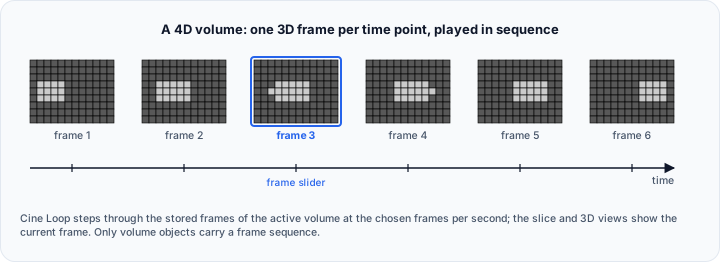
The Cine Loop tool plays the stored frame sequence of the active volume object. In the current Volvicon release, this is the primary workflow for reviewing imported 4D DICOM time series.
4D support in Volvicon is currently limited.
- Only volume objects can store and play 4D frame sequences
- Cine loop playback operates on the active volume object only
- Masks, surfaces, and volume meshes do not maintain independent 4D frame sets
- Other tools operate on the current active 3D volume state, not on the entire 4D sequence
When a workflow depends on synchronized 4D behavior across multiple object types, review the results carefully because only the volume object participates in cine playback.
When to Use Cine Loop
Use Cine Loop when you want to:
- Review a 4D DICOM acquisition frame by frame
- Check motion across time while keeping the same active volume object
- Present a time-resolved volume sequence in the 2D and 3D views
For importing 4D DICOM studies, see DICOM Import.
Prerequisites
Before opening Cine Loop:
- Import a compatible multi-series DICOM study as a 4D volume
- Activate the imported volume object in the scene
- Confirm that the volume contains more than one frame
If the active volume contains only a single frame, the Cine Loop controls remain unavailable.
The stored frame sequence is attached to the volume object. Changing the active object changes the frame sequence available to Cine Loop.
Opening the Tool
- Open the View tab
- In the Scene section, click Cine Loop
- The Cine Loop panel opens for the active volume object
Playback Controls
The panel provides the following controls:
| Control | Purpose |
|---|---|
| Play/Pause | Start or stop playback |
| First | Jump to the first frame |
| Previous | Move to the previous frame |
| Next | Move to the next frame |
| Last | Jump to the last frame |
| Frame slider | Move directly to a specific frame |
| FPS | Set playback speed in frames per second |
| Loop | Continue playback from the beginning after the last frame |
During playback, Volvicon updates the active volume image using the stored frame sequence and refreshes the visible 2D and 3D views.
Workflow: Review an Imported 4D DICOM Series
- Import the 4D DICOM study from DICOM Import
- Keep the imported volume active in the scene
- Open View → Scene → Cine Loop
- Drag the Frame slider to inspect individual time points
- Click Play to review motion continuously
- Reduce or increase FPS depending on the clinical or industrial event you are reviewing
- Pause on the frame of interest before using tools that operate on the current active volume state
For review tasks that depend on masks, surfaces, or volume meshes, pause Cine Loop on the target frame first and verify the overlay visually in the slice views.
Geometry Changes and Frame Invalidation
Volvicon expects all stored cine frames in a volume object to share the same image geometry. This includes dimensions, spacing, and origin.
If the active volume geometry changes after import, Volvicon clears the stored cine frames and keeps only the current active volume image.
Typical examples include:
- Cropping the volume
- Resampling to a new voxel grid
- Padding or trimming the image extent
- Applying any operation that changes image dimensions, spacing, or origin
If the active volume geometry no longer matches the stored 4D frames, Volvicon removes the stored frames and shows a warning on the status bar and in the Messages dock.
This behavior prevents playback of frames that no longer align with the current volume geometry. Without this safeguard, masks and other derived objects could appear misregistered when the frame changes.
After the stored frames are cleared, the active volume remains available as a normal 3D volume, but Cine Loop playback is no longer available until you import a compatible 4D sequence again.
Best Practices
- Complete 4D review before running geometry-changing volume operations
- If you need segmentation or surface generation for a specific time point, pause Cine Loop on that frame first
- Re-import the 4D series after crop, resample, or other geometry-changing edits if cine playback must remain available
- Use the slice views together with the 3D view to verify that overlays still match the active frame
Troubleshooting
Cine Loop Is Disabled
- Verify that the active object is a volume
- Verify that the active volume contains at least two stored frames
- Re-activate the imported 4D volume if another object became active
Frames Were Available Before but Are Now Gone
- Check whether the volume was cropped, resampled, padded, or otherwise modified
- Review the status bar for the frame-cleared notification
- Re-import the 4D DICOM series if you need cine playback again
Masks or Surfaces Do Not Follow the Time Sequence
- This is expected in the current release
- Masks, surfaces, and volume meshes do not have independent 4D playback support
- Review those objects on a selected frame rather than expecting synchronized multi-frame playback
Related Topics
- View Tab Overview - Summary of View tab tools
- DICOM Import - Import compatible 4D DICOM series
- Slice Views - Review frame alignment in orthogonal views
- Layouts - Choose a layout for cine review