2D View Controller
Each 2D slice view includes a compact controller for quick view actions and display options. Use it when you want to adjust the current slice view without opening a larger settings panel.
The controller covers view reset, zoom, screenshots, flip actions, ruler settings, orientation marker settings, view visibility options, and background options.
Main Buttons
- Center: Fits the current slice view to the available space.
- Zoom In: Increases magnification for the current slice view.
- Zoom Out: Decreases magnification for the current slice view.
- Screenshot: Captures an image of the current slice view.
- Flip: Opens flip options for the current slice view.
- Ruler: Opens ruler display options.
- Orientation Marker: Opens orientation marker style and size options.
- Visibility: Opens visibility and interpolation options.
- More Options: Opens detach, fullscreen, and background options.
Screenshot
Click Screenshot to save an image of the current slice view. Volvicon asks for a name and stores the screenshot in your pictures folder.
Use this when you need a quick export of the current slice display for reports, review, or comparison.
Flip Options
The Flip menu changes the orientation of the current slice view. These options affect only the current slice view.
- Horizontal: Mirrors the current slice view left-to-right.
- Vertical: Mirrors the current slice view top-to-bottom.
- Both: Applies both horizontal and vertical flips.
Ruler Options
The Ruler menu controls the ruler shown in the slice views. Ruler type and ruler color are synchronized across all three slice views.
Ruler Type
- Off: Hides the ruler.
- Thin: Shows a thinner ruler style.
- Thick: Shows a thicker ruler style.
Ruler Color
- White: Uses a white ruler.
- Black: Uses a black ruler.
- Yellow: Uses a yellow ruler.
Orientation Marker
The Orientation Marker menu controls the marker used to show slice orientation. Marker type and size are synchronized across all three slice views.
Marker Style
- Off: Hides the orientation marker.
- Unidirectional Axes: Shows one-direction axes labels.
- Bidirectional Axes: Shows axes labels in both directions.
- Cube: Shows a cube marker.
- Human: Shows a body-orientation marker.
Marker Size
- Small Axes Size: Uses a smaller marker.
- Medium Axes Size: Uses a medium marker.
- Large Axes Size: Uses a larger marker.
Visibility Menu
The Visibility menu controls overlays, the slice display mode, and slice-view display options.
- Toggle Slice in 3D View: Shows or hides this slice plane in the 3D view. Applies only to the current slice view.
- View Annotations: Shows or hides the corner annotations. Synchronized across all slice views.
- Orientation Labels: Shows or hides the edge-center direction labels (e.g. R, L, A, P for medical orientations or +X, -X for engineering). Shown by default. Synchronized across all slice views.
- Color Map Bar: Shows or hides the color bar. Synchronized across all slice views.
- Scene Scale Ruler: Shows or hides the scale ruler. Synchronized across all slice views.
Slice Display
The Slice Display submenu selects how the slice views map the gray values of the active volume to colors. This setting is synchronized across all three slice views and matches the Slice Display button in the View ribbon tab.
- Standard: Shows the slices with the brightness, contrast, and color of the volume itself. Window and level are available.
- Gray Value Intervals: Shows the slices with the colors assigned to the gray value intervals, at full strength.
- Gray Value Intervals with Opacity: Shows the interval colors weighted by their opacity curves, so the curves define the contrast.
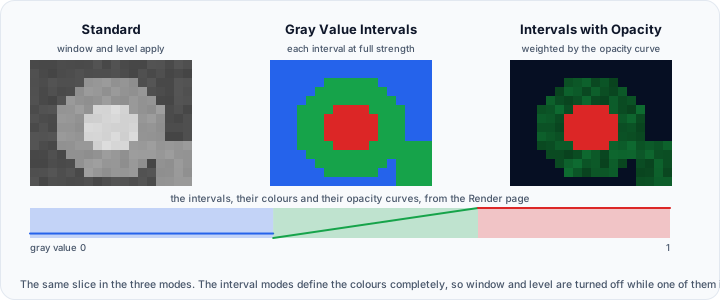
The two interval modes use the intervals defined on the Render page of Render Properties, and turn the window and level settings off while they are active. A volume that has no intervals yet falls back to Standard.
Opening Window/Level or Render Properties while the selected mode does not suit that tool offers to change it; see Mode Change Prompts.
Interpolation
The interpolation mode controls how the slice image is rendered between neighboring voxels. This setting is synchronized across all three slice views.
- Nearest Neighbor: Shows the sharpest voxel edges with no smoothing. Use this mode when you need to inspect individual voxels precisely.
- Linear: Smooths the display between neighboring voxels. This is the default mode for general use.
- Cubic: Applies stronger smoothing for a softer slice display.
More Options
The More Options menu provides view-management and background settings. Detach, fullscreen, and background changes apply to the current slice view only.
When the current slice view has focus, use Ctrl+Space to maximize or restore it, F11 to detach it, and Ctrl+Alt+Space to toggle fullscreen.
- Detach View: Opens the current slice view outside the main layout.
- Toggle Fullscreen: Shows the current slice view in fullscreen.
- Dark Gray Background: Sets a dark gray background.
- Black Background: Sets a black background.
- White Background: Sets a white background.
- Choose Background...: Lets you pick a custom background color.
Current View vs All Slice Views
Some controller actions affect only the current slice view, while others are kept synchronized across all three slice views.
Current slice view only:
- Center, Zoom In, Zoom Out, Screenshot
- Flip (Horizontal, Vertical, Both)
- Toggle Slice in 3D View
- Background changes, Detach, Fullscreen
All slice views (synchronized):
- Ruler type and ruler color
- Orientation marker type and size
- View Annotations
- Orientation Labels
- Color Map Bar
- Scene Scale Ruler
- Slice display mode
- Interpolation mode
Related Topics
- 2D Views – Slice view navigation and display behavior
- Slice Views Tab – Ribbon controls for slice-view tools
- 3D View – 3D display and slice-plane interaction