Primitives
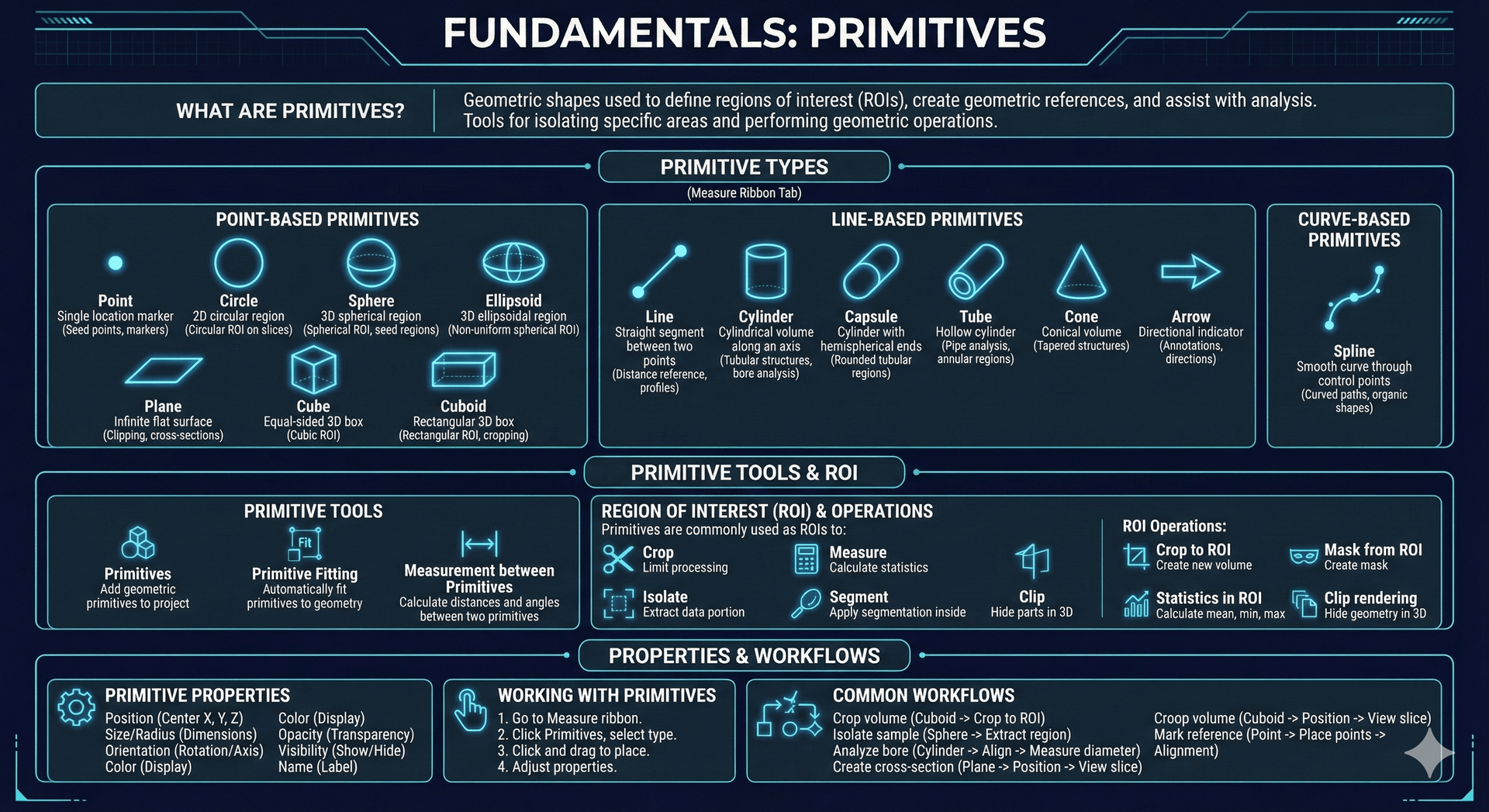
Primitives are geometric shapes used in Volvicon to define regions of interest (ROIs), create geometric references, and assist with analysis. They serve as tools for isolating specific areas of your data and performing geometric operations.
Primitive Types
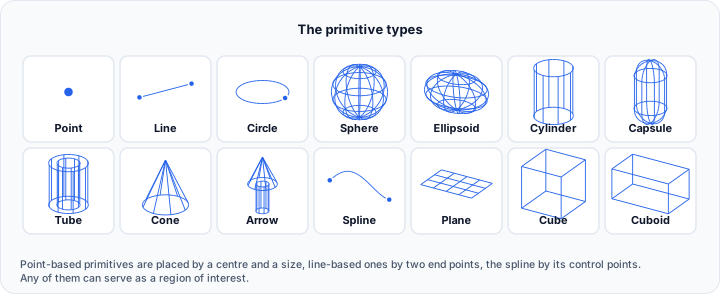
Volvicon provides the following primitive shapes, accessible from the Measure ribbon tab under Primitives:
Point-Based Primitives
These primitives are defined by a center point and size parameters:
| Primitive | Description | Use Case |
|---|---|---|
| Point | Single location marker | Seed points, markers |
| Circle | 2D circular region | Circular ROI on slices |
| Sphere | 3D spherical region | Spherical ROI, seed regions |
| Ellipsoid | 3D ellipsoidal region | Non-uniform spherical ROI |
| Plane | Infinite flat surface | Clipping, cross-sections |
| Cube | Equal-sided 3D box | Cubic ROI |
| Cuboid | Rectangular 3D box | Rectangular ROI, cropping |
Line-Based Primitives
These primitives are defined by two endpoints:
| Primitive | Description | Use Case |
|---|---|---|
| Line | Straight segment between two points | Distance reference, profiles |
| Cylinder | Cylindrical volume along an axis | Tubular structures, bore analysis |
| Capsule | Cylinder with hemispherical ends | Rounded tubular regions |
| Tube | Hollow cylinder | Pipe analysis, annular regions |
| Cone | Conical volume | Tapered structures |
| Arrow | Directional indicator | Annotations, directions |
Curve-Based Primitives
| Primitive | Description | Use Case |
|---|---|---|
| Spline | Smooth curve through control points | Curved paths, organic shapes |
Primitive Tools
The Measure ribbon tab provides these primitive-related tools:
| Tool | Description |
|---|---|
| Primitives | Add geometric primitives to the project |
| Primitive Fitting | Automatically fit primitives to geometry (surfaces, edges) |
| Measurement between Primitives | Calculate distances and angles between two primitives |
Region of Interest (ROI)
Primitives are commonly used as ROIs to:
- Crop – Limit processing to a specific region
- Isolate – Extract a portion of the data
- Measure – Calculate statistics within the region
- Segment – Apply segmentation tools only inside the ROI
- Clip – Hide parts of 3D renderings
ROI Operations
| Operation | Description |
|---|---|
| Crop to ROI | Create a new volume containing only the ROI region |
| Mask from ROI | Create a mask matching the primitive shape |
| Statistics in ROI | Calculate mean, min, max within the region |
| Clip rendering | Hide geometry outside the ROI in 3D view |
Primitive Properties
All primitives have these properties:
| Property | Description |
|---|---|
| Position | Center location (X, Y, Z) |
| Size/Radius | Dimensions of the shape |
| Orientation | Rotation angles or axis direction |
| Color | Display color |
| Opacity | Transparency level |
| Visibility | Show or hide |
| Name | User-defined label |
Working with Primitives
Creating Primitives
- Go to the Measure ribbon tab
- Click Primitives and select a primitive type
- Click and drag in a view to place and size
- Adjust the properties in the primitives table, or in the property dialog reached from its right-click menu
Primitive Fitting
Use Primitive Fitting to automatically fit primitives to existing geometry:
- Select a surface or edge
- Click Primitive Fitting
- Choose the primitive type to fit
- The primitive is positioned and sized to match the geometry
Measurement between Primitives
To measure relationships between primitives:
- Create two primitives
- Click Measurement between Primitives
- Select the two primitives
- View distance, angle, or other geometric relationships
Common Workflows
| Task | Primitive | Steps |
|---|---|---|
| Crop volume to region | Cuboid | Create cuboid → Crop to ROI |
| Isolate spherical sample | Sphere | Position sphere → Extract region |
| Analyze cylindrical bore | Cylinder | Align with bore → Measure diameter |
| Create cross-section | Plane | Position plane → View slice |
| Mark reference points | Point | Place points → Use for alignment |
Related Topics
- Measurements – Measuring with primitives
- Masks – Creating masks from primitives