Scripting Editor
The Volvicon Python scripting editor enables you to create, execute, and debug scripts that extend Volvicon with custom filters, plugins, and workflow automation. It allows you to prototype algorithms, interact with the Scripting API, and perform batch operations, all within the Volvicon environment.
| Starlit Moonlight Theme | Blue Theme |
|---|---|
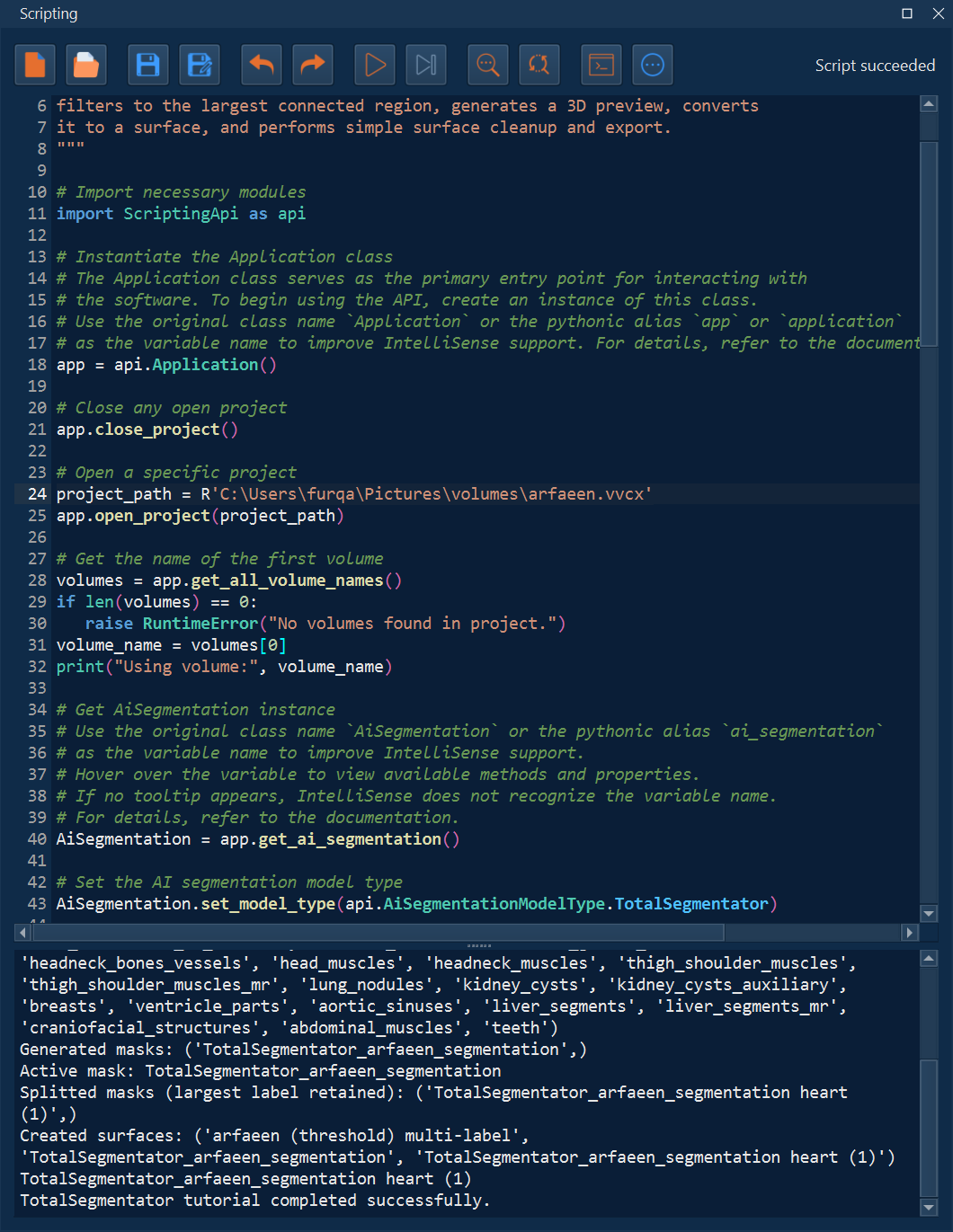 | 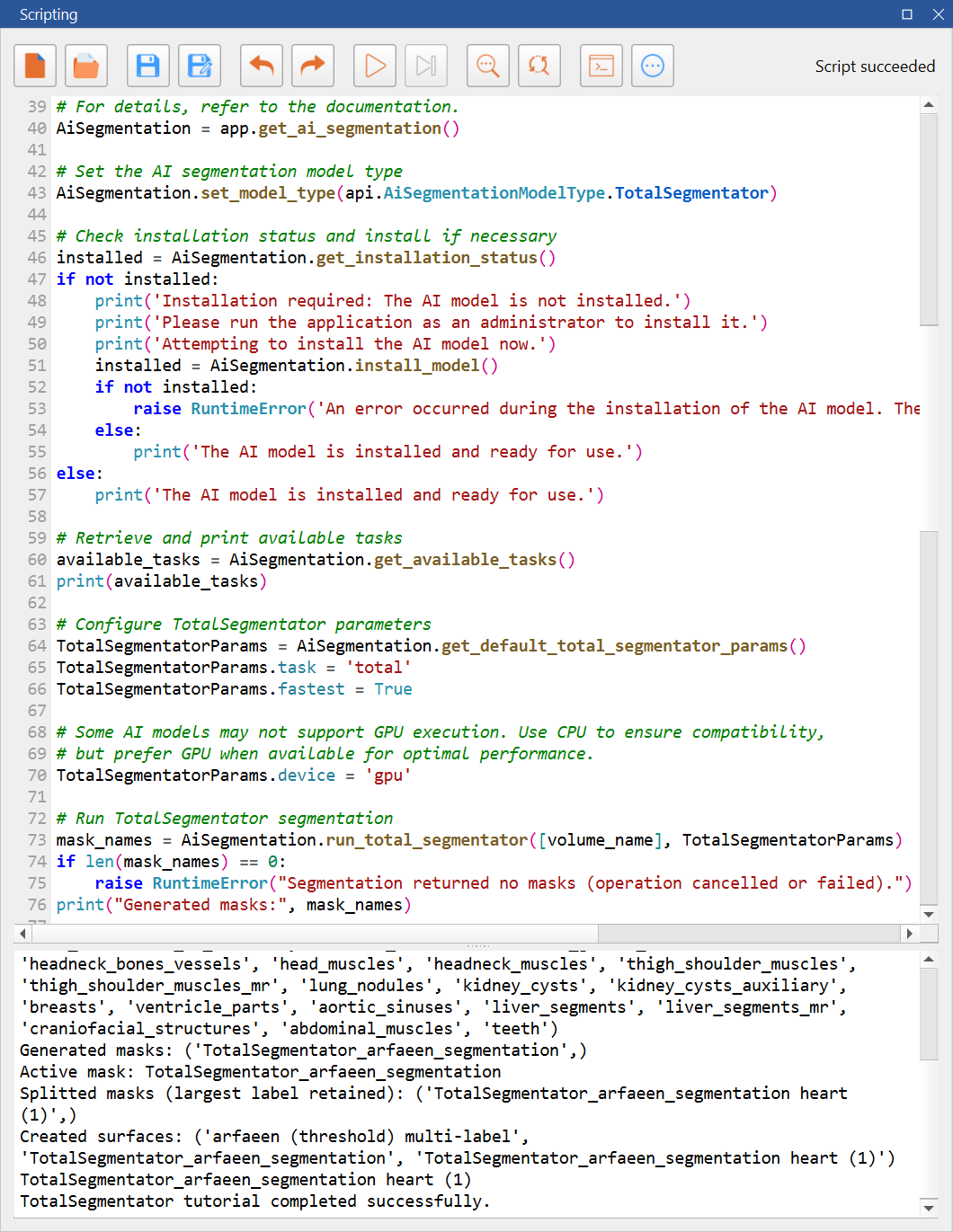 |
Editor Layout
- Code editor pane: Monospace, fixed-pitch view with syntax highlighting, line numbers, and no soft wrapping.
- Output console: Read-only console below the editor for stdout/stderr. Success output is shown in green; errors are shown in red with optional friendly formatting for common argument/type issues.
- Splitter: Drag to resize the editor/console ratio.
- Status and busy indicator: Status text reports actions (load, save, font changes, run results). A busy spinner shows while a script is executing.
- Find/replace panel: Collapsible panel beneath the toolbar for search operations.
Toolbar Controls
| Control | Action | Shortcut |
|---|---|---|
| New | Start a blank script; prompts to save unsaved changes. | — |
| Open | Load a .py file. | — |
| Save | Save to the current file. | — |
| Save As | Save to a new .py file. | — |
| Undo | Undo last change. | Ctrl+Z |
| Redo | Redo last undone change. | Ctrl+Shift+Z |
| Run | Execute the current script asynchronously. | Ctrl+R |
| Stop | Interrupt a running script. | Ctrl+Shift+R |
| Find | Show the find panel. | Ctrl+Shift+F |
| Find & Replace | Show find/replace panel. | Ctrl+Shift+H |
| Clear Console | Clear console output. | — |
| Templates | Insert predefined code templates or open the tutorials folder. | — |
Code Templates
Insert starter snippets from the Templates menu:
- Getting Started: Create an
Application, show messages, and request user confirmation. - Volume Operations: Inspect dimensions, origin, spacing, and import/export volumes.
- Mask Operations: List masks/volumes, create masks, run thresholding, and import/export masks.
- Surface Operations: Create primitives, import/export meshes, and apply smoothing/reduction/subdivision.
- AI Segmentation: Configure TotalSegmentator, install models if needed, and run inference on a volume.
- Project Management: List project objects, check active selections, and open/save/close projects.
A menu option opens the on-disk documentation/scripts/tutorials folder if present.
Completion Tips
- Create API objects with direct assignments before using them, for example
app = api.Application()andvolume_operations = app.get_volume_operations(). - Keep the constructor or getter call on the same assignment line so the editor can recognize the returned object and show completion items, hover details, and call signatures.
- Add an optional type annotation when a function returns a structured API result, for example
result : api.MaskStatisticsResult = measure_operations.compute_whole_mask_statistics(...). - When iterating a list of API objects, annotate the loop item before reading its fields. This is especially useful for fields such as
label_statistics,statistics,samples, DICOM series lists, metadata dictionaries, and FEM entity lists. - Type
.after an assigned object or pressCtrl+Spaceto request suggestions manually. - The built-in Getting Started template follows this structure so it can serve as a clean starting point for new scripts.
mask_statistics_result : api.MaskStatisticsResult = measure_operations.compute_per_label_mask_statistics(
    mask_name,
    volume_name,
    requested_stats
)

for item in mask_statistics_result.label_statistics:
    label_stats : api.MaskLabelStatistics = item
    print(label_stats.label, label_stats.volume)
Editing Aids
- Python-aware syntax highlighting with keywords, built-ins, imports, strings, comments, numbers, classes, functions, decorators, and bracket coloring.
- Code completion driven by Volvicon API metadata; trigger with Ctrl+Space or after typing
.. Selected completions insert directly into the editor. - Call-signature tooltips highlight the active parameter while typing function calls.
- Hover tooltips for API objects/functions when metadata is available.
- Current-line highlight plus optional matching-bracket and current-word highlighting to reduce navigation errors.
- Toggle comments for the current selection or line (Ctrl+/).
- Auto-indentation for new lines; Tab/Shift+Tab indents or dedents selections.
Ctrl+Alt+Iformats Python indentation for the current selection or the whole file without requiring the context menu to stay open. - Zoom In/Out (Ctrl+=/Ctrl++ and Ctrl+-) adjusts font size for both editor and console; zoom is also available from the context menu.
- Fixed 4-space tab stops for predictable alignment.
Search and Navigation
- Find/Replace panels: Accessible from toolbar or shortcuts; find is available with Ctrl+Shift+F, replace with Ctrl+Shift+H.
- Find Next / Previous: F3 moves to the next match; Shift+F3 moves to the previous match.
- Line numbers: Always visible in the margin for quick navigation.
- Word selection: Selecting a word highlights other occurrences in view.
Execution and Console Behavior
- Scripts run asynchronously so the UI stays responsive; Stop interrupts execution.
- Console captures stdout/stderr. Successful results append in green; failures append in red with optional enriched guidance (argument count/type hints) when error formatting is enabled.
- The editor emits start/finish signals for integrations; status text reports "Script succeeded" or "Script failed".
- Clear Console resets the output view; running again appends new output.
Context Menu
Right-click in the editor to access:
- Undo, Redo
- Cut, Copy, Paste, Delete
- Toggle Comment (Ctrl+/)
- Format Indentation (Ctrl+Alt+I)
- Find, Find & Replace
- Zoom In, Zoom Out
- Select All
File Handling and Input
- Drag-and-drop a
.pyfile onto the editor to load it. - New/Open prompt to save unsaved work before clearing or replacing content.
- Default font is Consolas, fixed-pitch, 10pt; line wrap is disabled for code clarity.
Practical Uses
- Automate repetitive project tasks (batch segmentation, exports).
- Prototype custom filters or measurements using the Scripting API and Volvicon data structures.
- Build repeatable pipelines that combine volume, mask, surface, and AI operations within Volvicon.