Local AI (Ollama)
The local option runs an AI model on your computer using Ollama. It is free, private, and works offline once a model is downloaded. Nothing you type leaves your computer.
Local AI is included with Volvicon. There are no accounts and no API keys — select a model, download it once, and start using it.
Hardware requirements
Local AI models run in your GPU's graphics memory (VRAM). The amount of VRAM available determines which models you can run:
| GPU VRAM | Suitable models |
|---|---|
| Less than 6 GB dedicated memory | Small models only; performance is limited — a cloud provider may be better |
| 6 GB | Smaller models with an approximate 4 GB footprint |
| 8 GB | Gemma 4 Effective 4B (recommended) or Qwen2.5-Coder 7B |
| 12 GB | A 12B model may fit, but leaves limited room for 3D rendering |
| 16 GB and up | Larger recommended models, with more room for 3D rendering |
| No dedicated graphics card | Local AI runs on the CPU and is slow — a cloud provider is recommended |
Volvicon checks your NVIDIA, AMD, Intel, or other graphics hardware and uses the GPU automatically when the installed Ollama version, graphics driver, and available dedicated memory support it. Otherwise local models run on the CPU instead, which is much slower — often tens of seconds per answer. If no suitable graphics card is detected and you have less than 16 GB of system RAM, Volvicon shows a notice that local AI may be slow and suggests a cloud provider; you can dismiss it (with "Don't show again") and continue. See Ollama's hardware support.
Volvicon also uses the GPU to render volumes and meshes. A model that nearly fills your VRAM leaves little room for the 3D view. Choosing a model one tier below your GPU's maximum keeps both the assistant and the 3D view responsive.
Volvicon's bundled local AI service gives the model a large working window (context length) by default, so it has room for long answers and retrieved documentation — there is nothing to configure. The recommended 4B model is designed to fit alongside 3D rendering on an 8 GB graphics card; larger models need the additional VRAM shown below. If answers ever get cut off, see Answers get cut off (context length).
Recommended models
In testing, answering questions and writing correct scripts proved to be separate skills — some models explain Volvicon well but make small mistakes in generated code. The table below lists the available models in order of overall suitability. VRAM values are the approximate runtime footprint; actual usage varies with your GPU and settings.
| Model | Best for | Approx. VRAM | Requirements | Notes |
|---|---|---|---|---|
| Gemma 4 Effective 4B | Recommended default | ~4.8 GB or more | GPU 8 GB+, 32 GB system RAM | Fast and accurate. Strong answers and scripts; review generated scripts before running. The best starting point for most users. |
| Gemma 4 12B (Q4_K_M) | High-quality answers and scripts | ~8.5 GB or more | GPU 12 GB+, 32 GB system RAM | Reliable and consistent. Slower than the 4B model; review generated scripts before running. |
| Gemma 4 12B (QAT) | High quality, lower VRAM | ~8.2 GB or more | GPU 12 GB+, 32 GB system RAM | Similar to the Q4_K_M build, using slightly less VRAM; review generated scripts before running. |
| Qwen2.5-Coder 7B | Smaller GPUs (8 GB) | ~5.7 GB or more | GPU 8 GB, 16 GB system RAM | Fast. Strong answers; scripts are usually close but often need a small fix. |
| Qwen2.5-Coder 14B | Drafting code to review | ~11.5 GB or more | GPU 12 GB+, 16 GB system RAM | High quality and fast; scripts often need a small fix. |
| Qwen3 8B | General questions | ~7.6 GB or more | GPU 8 GB+, 16 GB system RAM | Good for Q&A; its scripts are frequently inaccurate. |
| Gemma 3 12B | High-quality answers | ~9.5 GB or more | GPU 12 GB+, 16 GB system RAM | Strong answers and scripts, and a touch faster than Gemma 4 12B. Review generated scripts before running. |
| DeepSeek-R1 14B | Detailed reasoning | ~11.7 GB or more | GPU 12 GB+, 16 GB system RAM | Structured, detailed answers. Reasons before replying, so it is the slowest option; complex scripts are often inaccurate. |
| DeepCoder 14B | Code (advanced users) | ~11.7 GB or more | GPU 12 GB+, 16 GB system RAM | Script-focused output. Review generated scripts before running. |
Guidance:
- For most users, start with Gemma 4 Effective 4B. It is fast, accurate, and fits an 8 GB GPU.
- For complex, multi-step automation (for example, "segment, smooth, remesh, and export"), prefer a 12B model. Smaller models tend to get the first step or two right and then drift.
- For detailed explanations, the larger Qwen3 and DeepSeek-R1 models give thorough answers but are slower.
The Gemma 4 12B models require Ollama 0.30.5 or newer. Earlier versions fail to run them.
Downloading a model
- In the assistant's Settings tab, set the provider to Ollama.
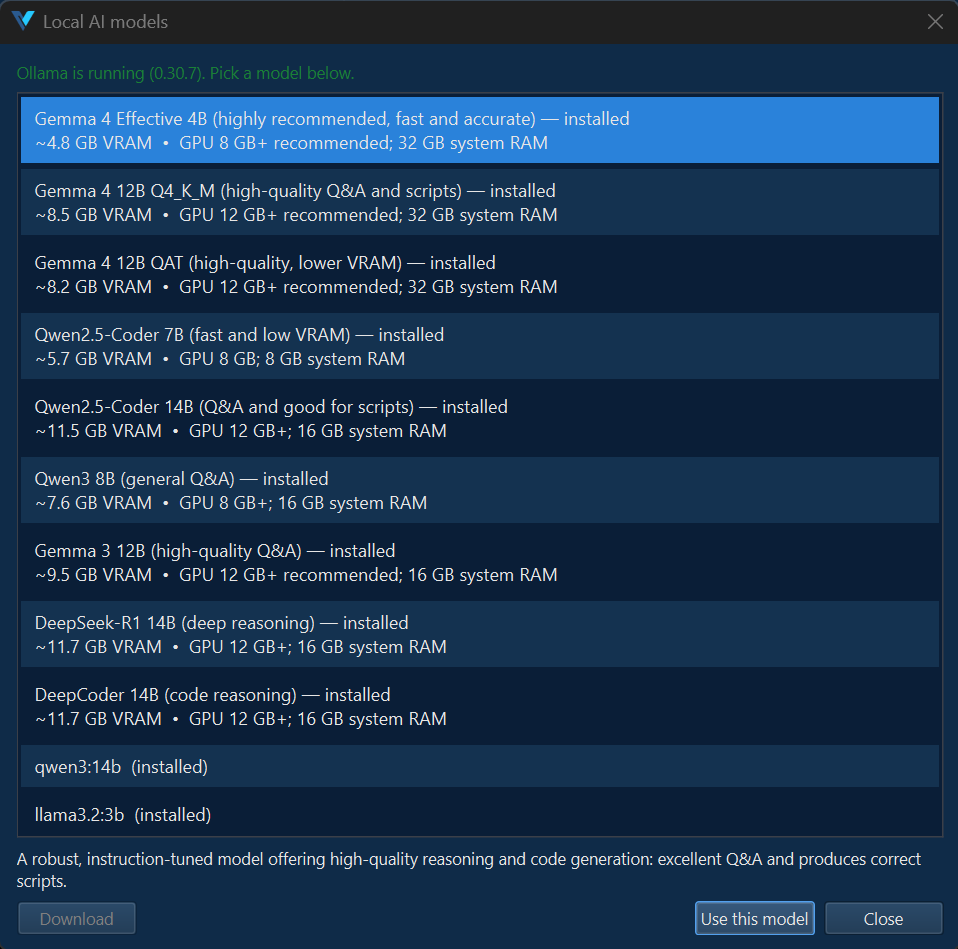
- Click Browse… next to the model field. A dialog lists the recommended models and any already installed.
- Select a model and click Download. A progress bar shows the download. Models are several gigabytes, so this can take a few minutes.
- When it finishes, click Use this model, then Save.
You can also type the name of any model you already have installed.
Switching models
When you change the model and save, Volvicon restarts the assistant with the new model and frees the graphics memory used by the previous model, making it available again immediately. The first answer from a newly selected model takes a few extra seconds while it loads.
Performance and the GPU
- A larger model is slower and uses more VRAM. If answers feel slow, switch to a smaller recommended model.
- Volvicon shares the GPU between the assistant and 3D rendering. If the 3D view becomes sluggish while a large model is loaded, choose a smaller model.
- Memory is released automatically. After your last message, the model stays ready for a few minutes so quick follow-ups are fast, then frees the GPU. Switching models or closing Volvicon frees it immediately.
- On computers without a suitable graphics card, local models run on the CPU and are slow. A cloud provider is usually the better option on integrated-graphics or CPU-only systems.